


DxDiag Windows 11: Windows 11 Bootable USB — Unlike a regular USB drive used for storing files, a bootable USB is specially prepared with a bootable image file (such as an ISO) and a bootloader. This allows the computer to recognize it as a bootable device during startup. As a result, it becomes a versatile tool for installing new operating systems, running live environments, or recovering a non-functional system.
One of the most popular open-source utilities for creating a bootable USB is Rufus. It is a lightweight application designed specifically to format USB drives and write bootable ISO images. In this article, we’ll look at how to create a Windows 11 bootable USB using Rufus. Let’s get started.
Why do you need to create a bootable USB on Windows 11?
Install, Upgrade, and Repair. These are the three scenarios where we may need a bootable USB. Imagine your computer suddenly refusing to boot, stuck in an endless loop of errors, or staring blankly at a black screen, or worse, the Blue Screen of Death. Or perhaps you’ve been battling with a sluggish system for weeks and decide it’s time for a clean slate. Nowadays, whether you buy a Laptop online or offline, in most cases, they come with Windows preloaded. However, if you are purchasing a DOS-based computer, and then you purchase Windows 11 separately, then a bootable USB can be helpful in a successful installation of your Windows 11. In moments like these, having a Windows 11 bootable USB becomes a lifesaver.
Alright then, we now know the purposes of a Bootable USB. The next step is to get to know about the prerequisites before starting the process.
What are the prerequisites?
| A USB Flash Drive | 8GB or Higher | A USB drive with at least 8GB of storage space. |
| A Windows 11 ISO File | can be downloaded from the official Microsoft Website | The ISO file contains all the installation data required for Windows 11. |
| Rufus Software | Can be downloaded from the official Rufus Website | It’s a small, portable program that doesn’t require installation but needs to be launched from your system. |
| A Computer Running Windows OS | You’ll need a working computer to run Rufus and prepare the bootable USB drive. | |
| BIOS/UEFI settings | The option to access boot menu varies with different brands and models. | You should be familiar with how to access your PC’s BIOS/UEFI settings in case you need to set the boot order or enable options like UEFI or Secure Boot for installation. |
Note: The USB Flash drive will be completely formatted, so make sure there is no important data on it.
Create a Windows 11 Bootable USB using Rufus Utility Software
Let’s assume that you have downloaded the Windows 11 ISO file from official Microsoft, then you have downloaded and installed the latest Rufus, and you have plugged in a 16 GB USB Flash stick(minimum 8GB), the following are the steps.
At the time of this article, the latest version of Rufus available to use is 4.6.2208
- Open Rufus. Connect the USB Flash Drive to the system.
- User Account Control will prompt for your confirmation. Click Yes to continue.
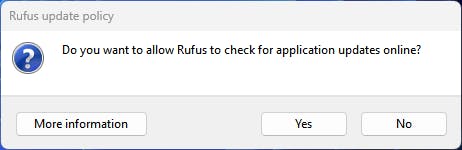
- Rufus update policy will pop up. It will ask permission to allow Rufus to check for application updates online. Depending on your requirements, you can click Yes or no. To proceed forward, I am clicking Yes.
- Rufus will open now, Under Device, you can find the USB Flash Drive that you have connected.
- Under Boot Selection, by default, it will be Disk or ISO Image. Please do not change that option. You can find Select next to it. Click on that.
- When you click on Select, the system will prompt for the ISO file. Navigate to the ISO file select it and click Open.
- The default values of the Drive Properties such as the partition scheme is GPT, the Target system is UEFI (non CSM), the Image option is the Standard Windows Installation, and Format options such as the File system is the NTFS, Cluster Size 4096 bytes (Default). Kindly do not alter any of these values.
- Volume Label will have its default name from the ISO image file, it is recommended to leave it that way.
- Finally, click Start to start the process.
- Once you click on the Start process, Customize Windows Installation option of Rufus (Windows User Experience) will pop up. Choose your options accordingly, and then click OK.
- Now, you will be provided with a Warning stating that all the contents of the USB Stick will be destroyed. Kindly take a backup of the USB stick contents aside so that you do not face any data loss. Finally, click OK.
- Finally, Rufus will start preparing the Windows 11 Bootable USB. The process may take somewhere between 5 to 30 minutes depending on your hardware specification. Kindly be patient.
- Once the process completes 100%, the status bar will display “Ready” with the complete Green bar. That is it. Now, the USB Flash Drive is ready to use as a Windows 11 Bootable USB. Click Close to Close Rufus.
- You can safely remove the USB Flash Stick and is ready to use.
Frequently Asked Questions
What’s the difference between using Rufus and the Windows Media Creation Tool?
Both Rufus and the Windows Media Creation Tool can be used to create a bootable USB, but the Windows Media Creation Tool is an official Microsoft tool that simplifies the process of downloading Windows and creating the installation media. Rufus, on the other hand, offers more customization options and is useful if you need to bypass certain system requirements or create bootable drives from other ISO files.
What should I do if my computer won’t boot from the USB?
If your computer doesn’t boot from the USB, make sure that the USB drive is properly formatted and contains the correct installation files. Additionally, you may need to adjust your BIOS/UEFI settings to enable USB booting or change the boot order.
Can I use the bootable USB to fix a broken Windows installation?
Yes, a bootable USB can be used to repair or reinstall Windows if your system is unbootable due to a corrupted OS, system files, or other issues.
Take away
Creating a Windows 11 bootable USB is an essential step for anyone looking to install or repair the operating system. With tools like Rufus, it’s quick and easy to set up, giving you a portable, reliable solution for troubleshooting, upgrading, or reinstalling Windows 11. If you are looking for an alternative to Rufus, you can use Microsoft’s Media Creation Tool, which can be a convenient option for those who are looking to download and prepare a bootable USB directly with the help of the Media Creation tool from Microsoft.