Why You Need a Truncated Mean
In data analysis, the standard AVERAGE function is a workhorse, but it has a significant weakness: it is highly susceptible to distortion from outliers. A single extreme value, whether high or low, can skew the entire result, misrepresenting the data's true central tendency.
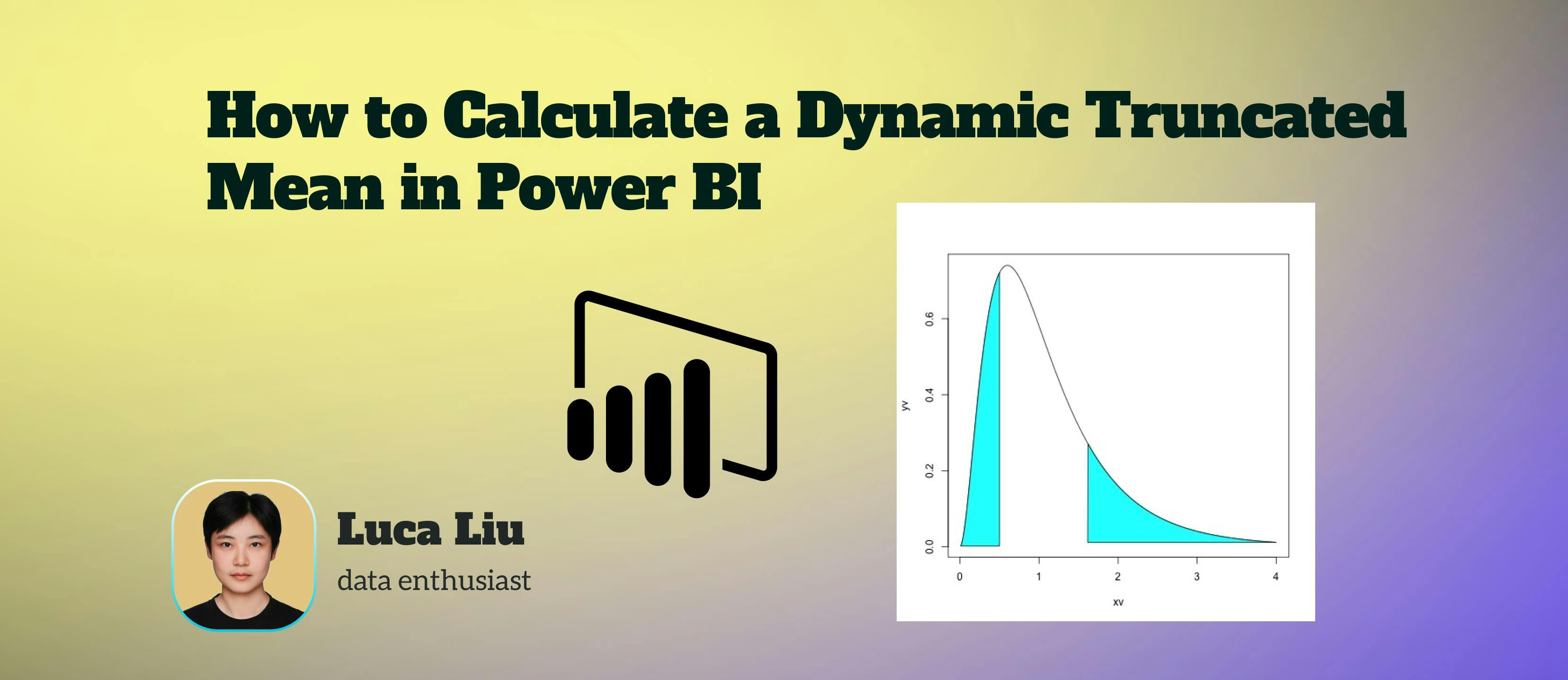
This is where the truncated mean becomes essential. It provides a more robust measure of the average by excluding a specified percentage of the smallest and largest values from the calculation.
While modern Power BI models have a built-in TRIMMEAN function, this function is often unavailable when using a Live Connection to an older Analysis Services (SSAS) model. This article provides a robust, manual DAX pattern that replicates this functionality and remains fully dynamic, responding to all slicers and filters in your report.
The DAX Solution for a Dynamic Truncated Mean
This measure calculates a 20% truncated mean by removing the bottom 10% and top 10% of values before averaging the remaining 80%.
You can paste this code directly into the "New Measure" formula bar.
Trimmed Mean (20%) =
VAR TargetTable = 'FactTable'
VAR TargetColumn = 'FactTable'[MeasureColumn]
VAR LowerPercentile = 0.10 // Defines the bottom 10% to trim
VAR UpperPercentile = 0.90 // Defines the top 10% to trim (1.0 - 0.10)

// 1. Find the value at the 10th percentile
VAR MinThreshold =
    PERCENTILEX.INC(
        FILTER(
            TargetTable,
            NOT( ISBLANK( TargetColumn ) )
        ),
        TargetColumn,
        LowerPercentile
    )

// 2. Find the value at the 90th percentile
VAR MaxThreshold =
    PERCENTILEX.INC(
        FILTER(
            TargetTable,
            NOT( ISBLANK( TargetColumn ) )
        ),
        TargetColumn,
        UpperPercentile
    )

// 3. Calculate the average, including only values between the thresholds
RETURN
CALCULATE(
    AVERAGEX(
        FILTER(
            TargetTable,
            TargetColumn >= MinThreshold &&
            TargetColumn <= MaxThreshold
        ),
        TargetColumn
    )
)
Deconstructing the DAX Logic
This formula works in three distinct steps, all of which execute within the current filter context (e.g., whatever slicers the user has selected).
- Define Key Variables
TargetTable&TargetColumn: We assign the table and column names to variables for clean, reusable code. You must change 'FactTable'[MeasureColumn] to match your data model.LowerPercentile/UpperPercentile: We define the boundaries. 0.10 and 0.90 mean we are trimming the bottom 10% and top 10%. To trim 5% from each end (a 10% total trim), you would use 0.05 and 0.95.
2. Find the Percentile Thresholds
MinThreshold&MaxThreshold: These variables store the actual values that correspond to our percentile boundaries.PERCENTILEX.INC: We use this "iterator" function because it allows us to first FILTER the table.- `FILTER(..., NOT(ISBLANK(...))): This is a crucial step. We calculate the percentiles only for rows where our target column is not blank. This prevents BLANK() values from skewing the percentile calculation.
- The result is that
MinThresholdholds the value of the 10th percentile (e.g., 4.5) andMaxThresholdholds the value of the 90th percentile (e.g., 88.2) for the currently visible data.
3. Calculate the Final Average
RETURN CALCULATE(...): The CALCULATE function is the key to making the measure dynamic. It ensures the entire calculation respects the filters applied by any slicers or visuals in the report.AVERAGEX(FILTER(...)): The core of the calculation. We use AVERAGEX to iterate over a table.FILTER(...): We filter our TargetTable a final time. This filter is the "trim." It keeps only the rows where the value in TargetColumn is:- Greater than or equal to our MinThreshold
- AND
- Less than or equal to our MaxThreshold
AVERAGEX(..., TargetColumn):AVERAGEXthen calculates the simple average ofTargetColumnfor only the rows that passed the filter.
Conclusion
By implementing this DAX pattern, you create a robust, dynamic, and outlier-resistant KPI. This measure provides a more accurate picture of your data's central tendency and will correctly re-calculate on the fly as users interact with your Power BI report.
Thank you for taking the time to explore data-related insights with me. I appreciate your engagement. If you find this information helpful, I invite you to follow me or connect with me on
[story continues]
tags