TL;DR —
1. Quick file open: Ctrl + P
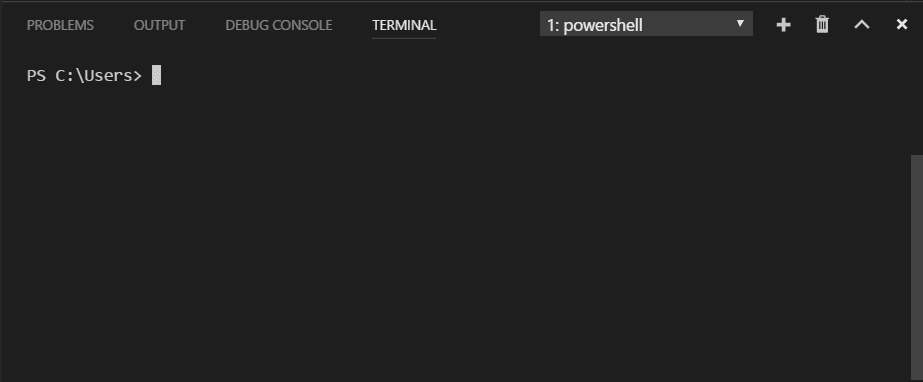
2. Show terminal: Ctrl + backtick
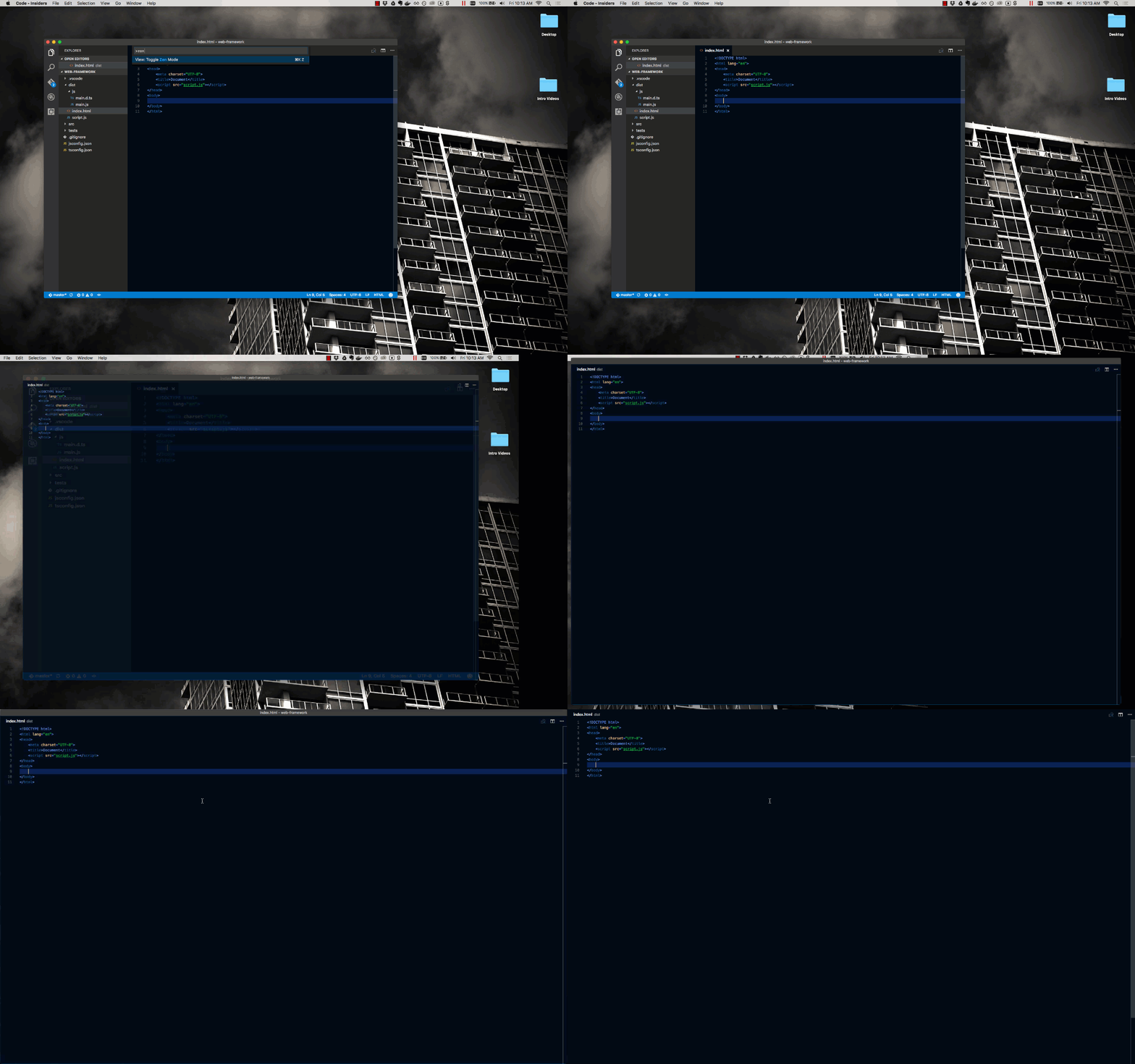
3. Zen mode: Ctrl + K, then Z
5. Switch between editors: Ctrl + 1, Ctrl + 2...
6. Multi cursor selection: Alt + Click or Ctrl + Alt + Up/Down
Some of these tips I took from VS Code documentation. I recommend you to take a look.
1. Quick file open: Ctrl + P

2. Show terminal: Ctrl + backtick
3. Zen mode: Ctrl + K, then Z
4. Open new editor: Ctrl + \
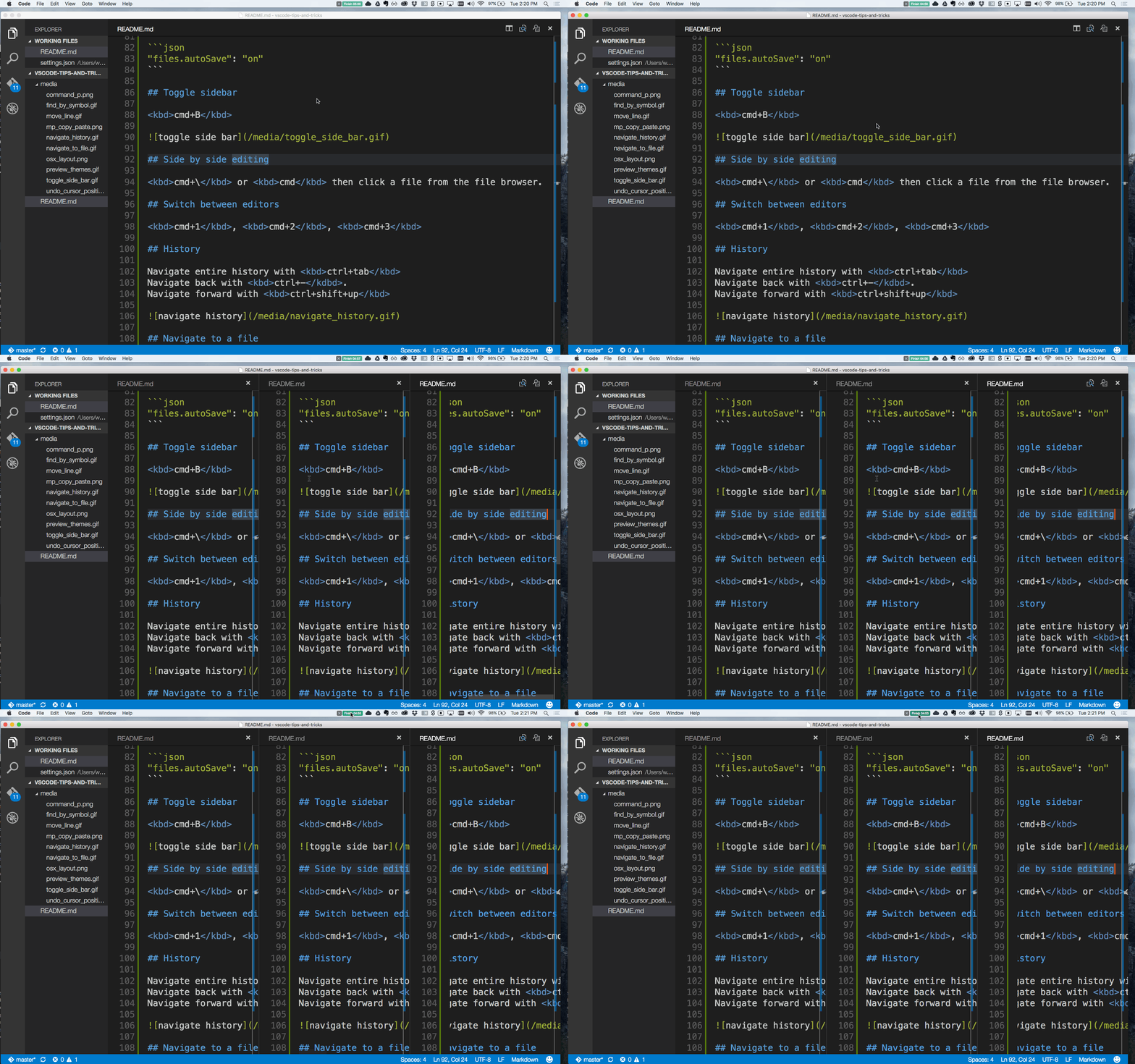
5. Switch between editors: Ctrl + 1, Ctrl + 2...

6. Multi cursor selection: Alt + Click or Ctrl + Alt + Up/Down
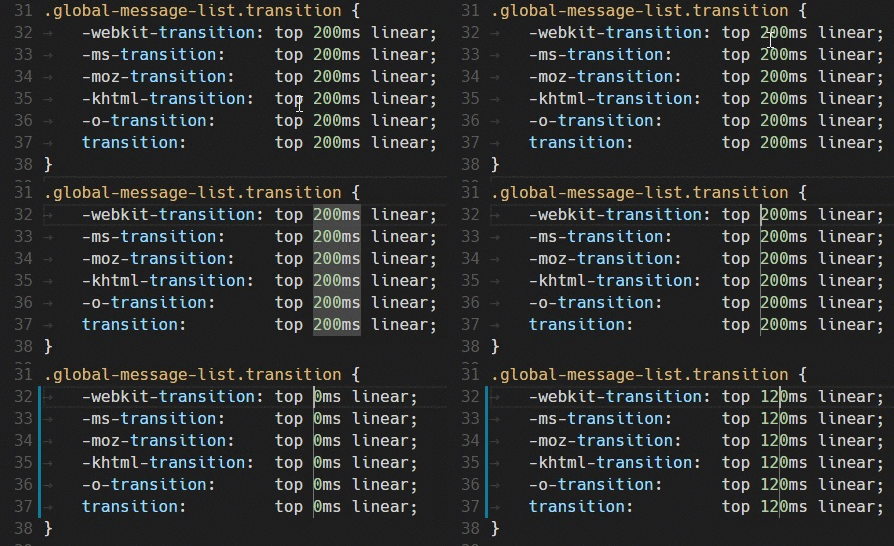
7. You can also add additional cursors to all occurrences of the current selection: Ctrl + Shift + L
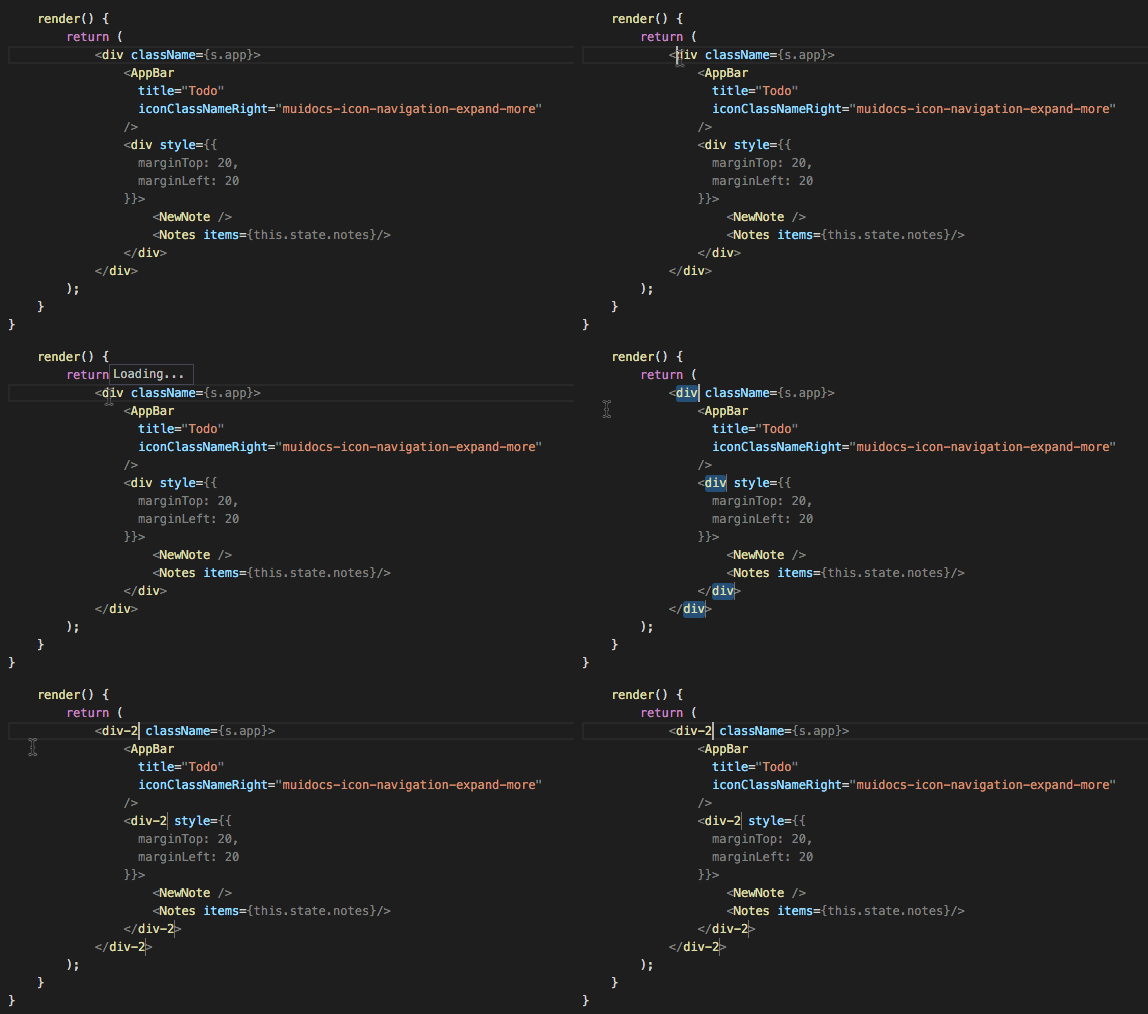
8. Or if you want to select only the next occurrence: Ctrl + D
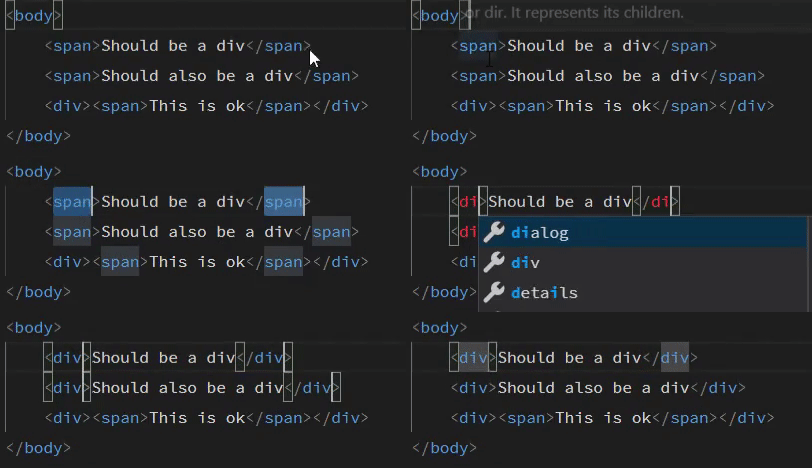
9. Copy line up / down: Shift + Alt + Up/Down
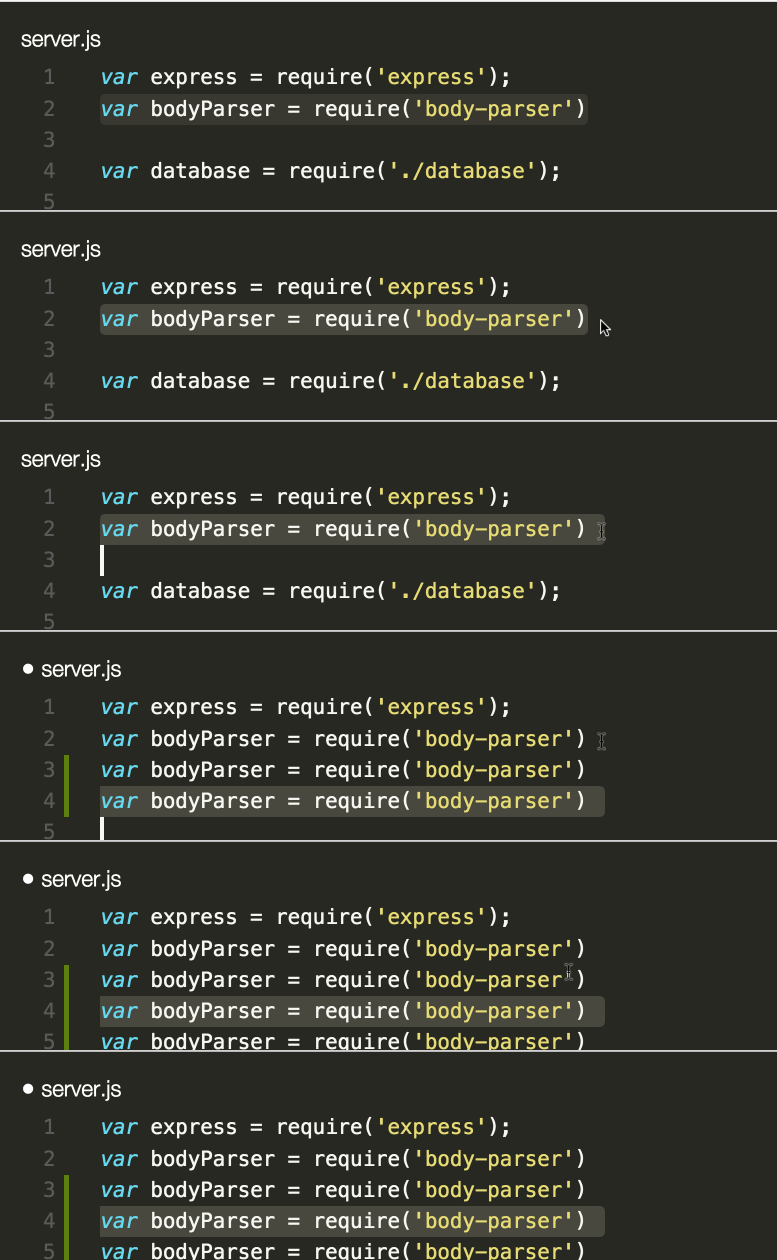
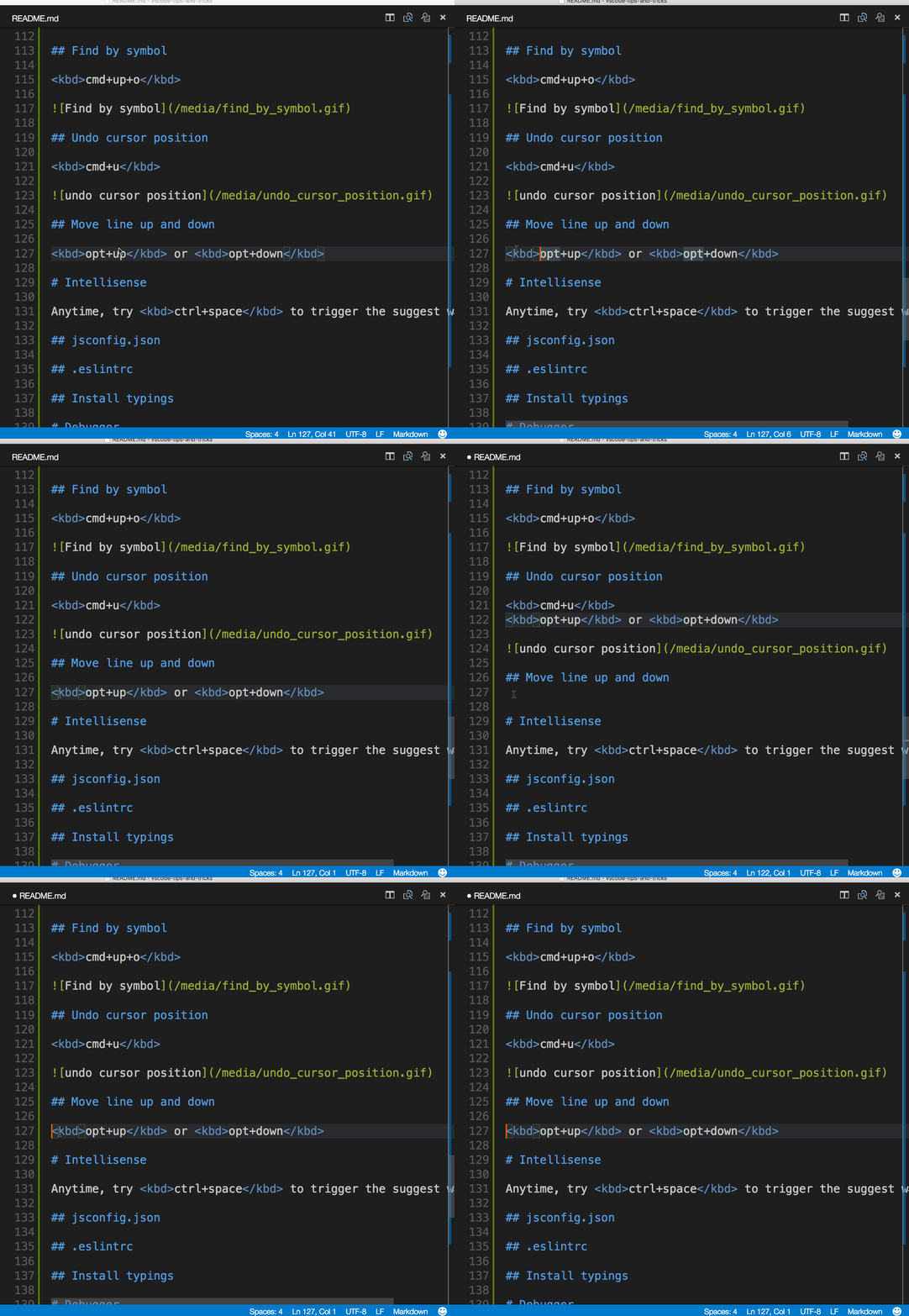
10. Move line up and down: Alt + Up/Down
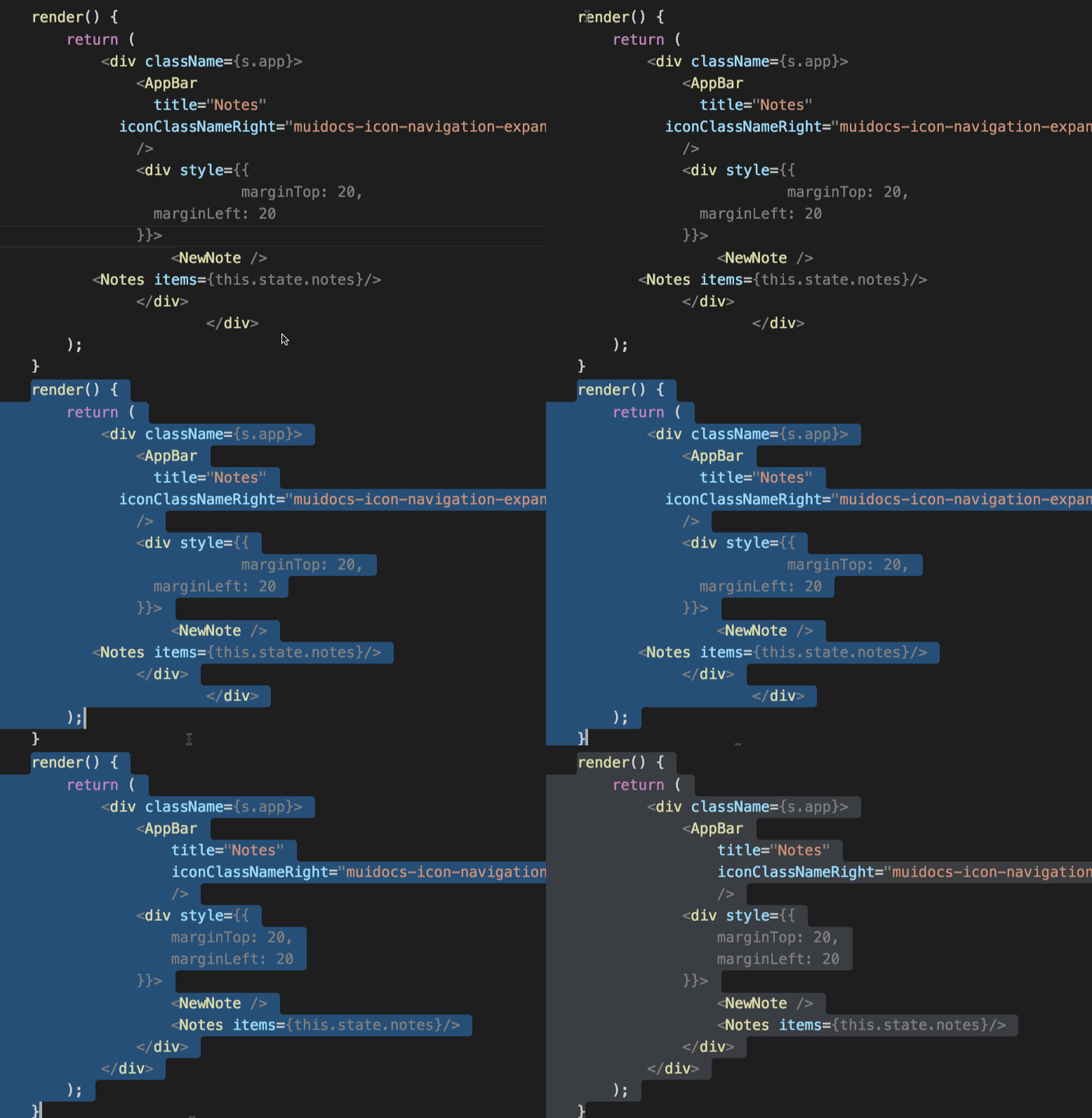
11. Code formatting: Shift + Alt + F (whole document)
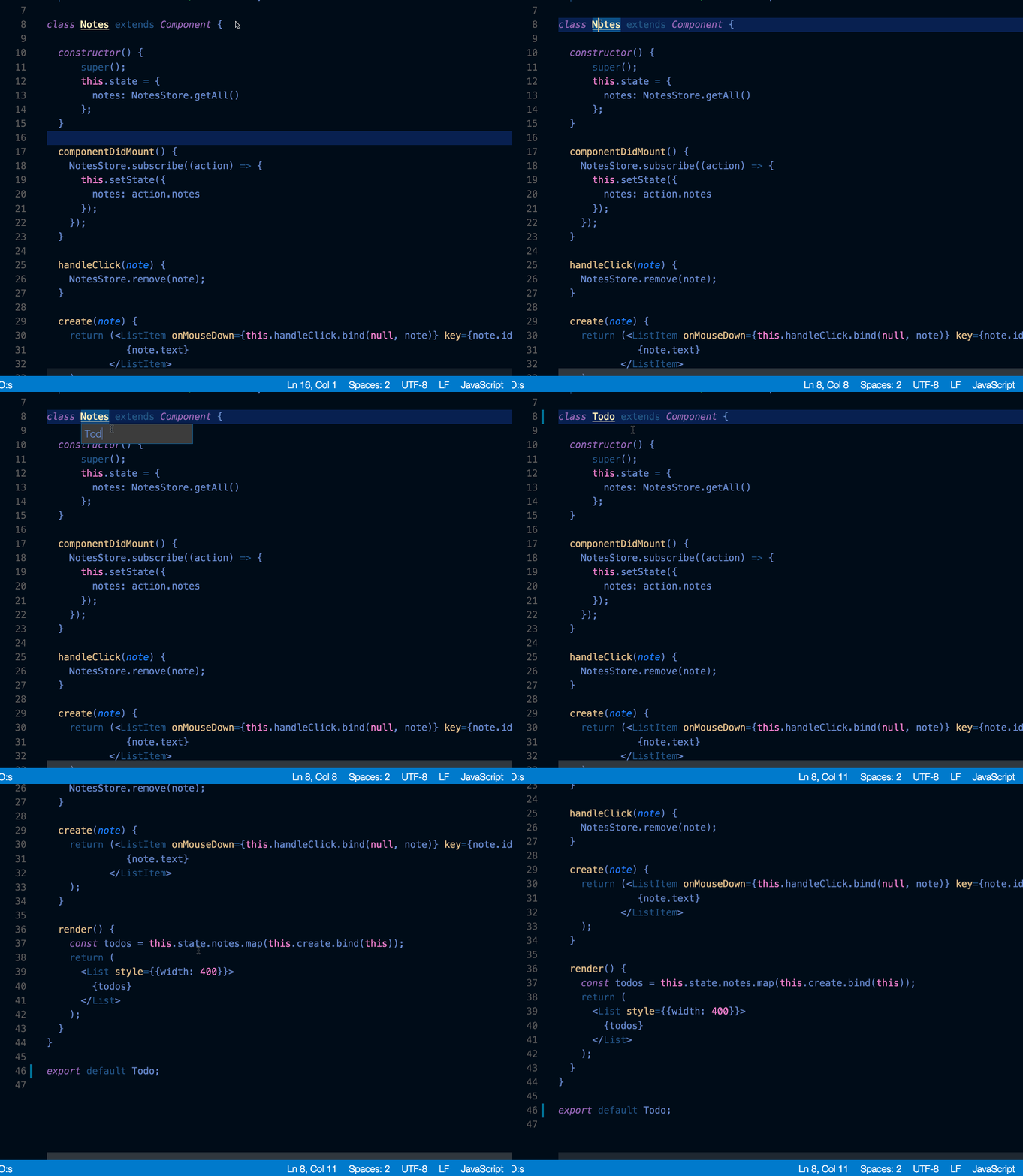
12. Rename: F2
😎 You might also like Python Typing.
📫 Where to find me: All my links.
[story continues]
Written by
@danielalima
Computer Science student & SAP CPI/PO Consultant. Amateur writer.
Topics and
tags
tags
vscode|coding-tips|tips-and-tricks|time-management|programming-tips|beginners-guide|vs-code-shortcuts|vs-code-tutorial
This story on HackerNoon has a decentralized backup on Sia.
Transaction ID: _IpMMzbd8XSHYkZ_E1Fm-bjXDMNrkRs3mi9aNpAF55A