
AI coding agents like Claude Code and Gemini have proven to be a game-changer for developers. Companies are not only increasingly relying on these agents, but are also encouraging their developers to use these agents for improved developer efficiency. Most of these agents run autonomously. Using them for coding typically involves installing the CLI tool, running it in a directory granting it full access to the contents of that directory. This access allows the AI agent to read and modify repositories, files and secrets stored at that path. How much information to divulge is up to each developer’s discretion. But even though developers can wisely assess and determine the level of access and permissions per directory, they are facing one troubling question: how do you give agents enough access to be useful without adding unnecessary risk to your local environment?
Enter: Docker Sandboxes!
Docker has recently announced a new approach, called Sandboxes, for running autonomous AI coding agents in isolated local environments. Docker Sandboxes leverage the security isolation benefits provided through container-based isolation, by creating a container to run the AI agent. The main goal is to give the autonomous AI agents the access they need while providing isolation from your local system. So while you code with an AI agent within a Sandbox environment, agents can execute commands, install packages, and modify files in a containerized workspace that mirrors your local directory, while your local system remains intact (system files, any files outside the current workspace directory)
Docker Sandboxes is an experimental preview. Commands may change and you shouldn’t rely on this for production workflows yet.
How Docker Sandbox works
Docker Sandboxes is an experimental feature. Currently it has support for the following coding agents:
-
Claude Code
-
Gemini CLI
Support for more coding agents is coming soon. Docker Sandboxes requires Docker Desktop version 4.5 or later.
Getting started with Docker Sandboxes needs a simple one-step command: docker sandbox run <agent>. But before trying out the command, let’s look at what happens on running the command:
- Behind the scenes Docker creates a container using a template sandbox image. Depending on the choice of the coding agent, it will use either of the two:
docker/sandbox-templates:geminidocker/sandbox-templates:claude-code
- The container starts in the current workspace directory where the command is run. The current working directory is mounted into the container at the same absolute path. So if your current workspace directory is
/Users/test/demo, you can access all files at that path within the container as well. The goal is to create a container-based environment that’s identical to the current working directory. This is useful for developers as they can write their code around accessing files in that directory, and that will work both within and outside the container. Sandbox also ensures that changes to workspace files is reflected on the host as well as on the container, maintaining this isolated yet identical environment. - Another crucial step is authenticating with the coding agents so that they can be used within the sandbox. Users will be prompted to authenticate on first running the
docker sandbox run <agent>command. The credentials will be stored in a Docker volume and reused for future sandbox sessions - On running this command Docker will also discover the global configuration for Git (
user.nameanduser.email) and inject it into the sandbox, so that commits can be made on behalf of the user - Finally, the coding agent starts inside the container with bypass permissions enabled
Let’s try it out!
Time to give this a try using the Claude Code agent. Let’s review the things we need in order to give this a try:
Prerequisites
- Docker Desktop version 4.5+
- Claude subscription for using Claude Code
Steps
- In your workspace directory, start the sandboxed coding agent by running:
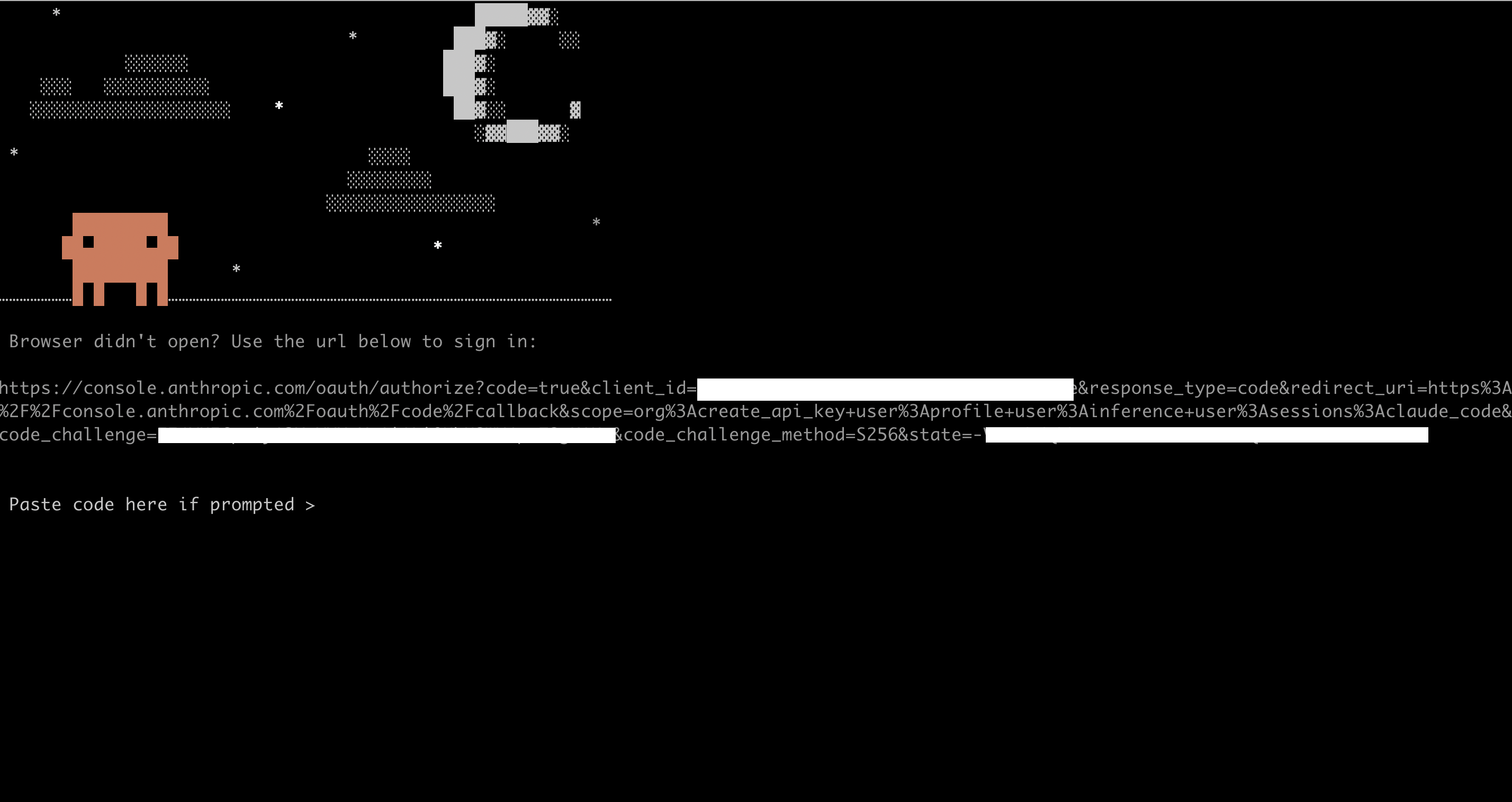
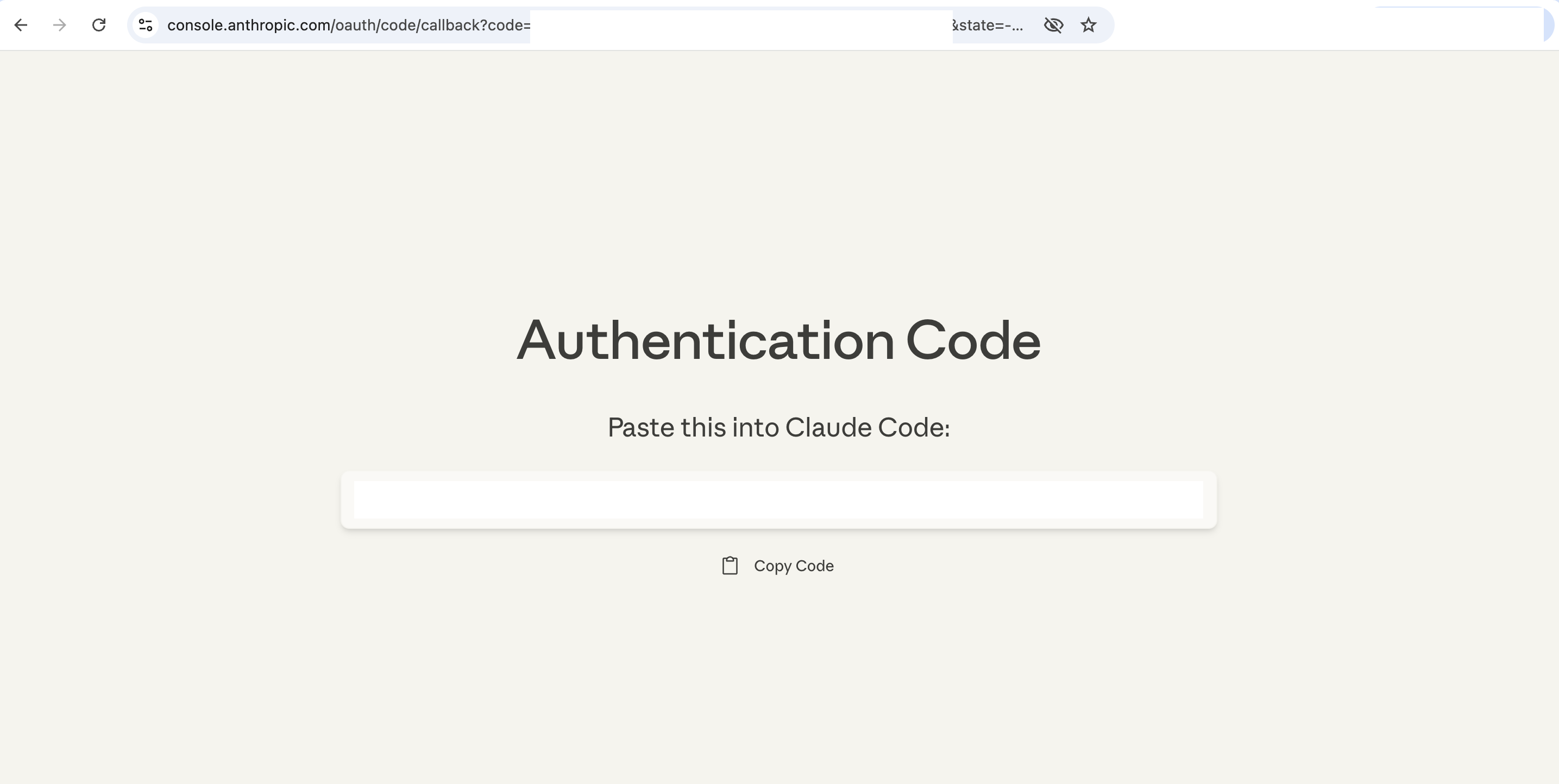
docker sandbox run claude - On the first run you will be prompted to authenticate. For browser based authentication, if opening the browser doesn’t work, it will provide you with a URL to sign in with:
-
The API key will be stored in a Docker volume:

This will get reused for future sandboxes, without needing authentication prompt each time.
Those are all the steps! Claude code agent will have launched inside the container.
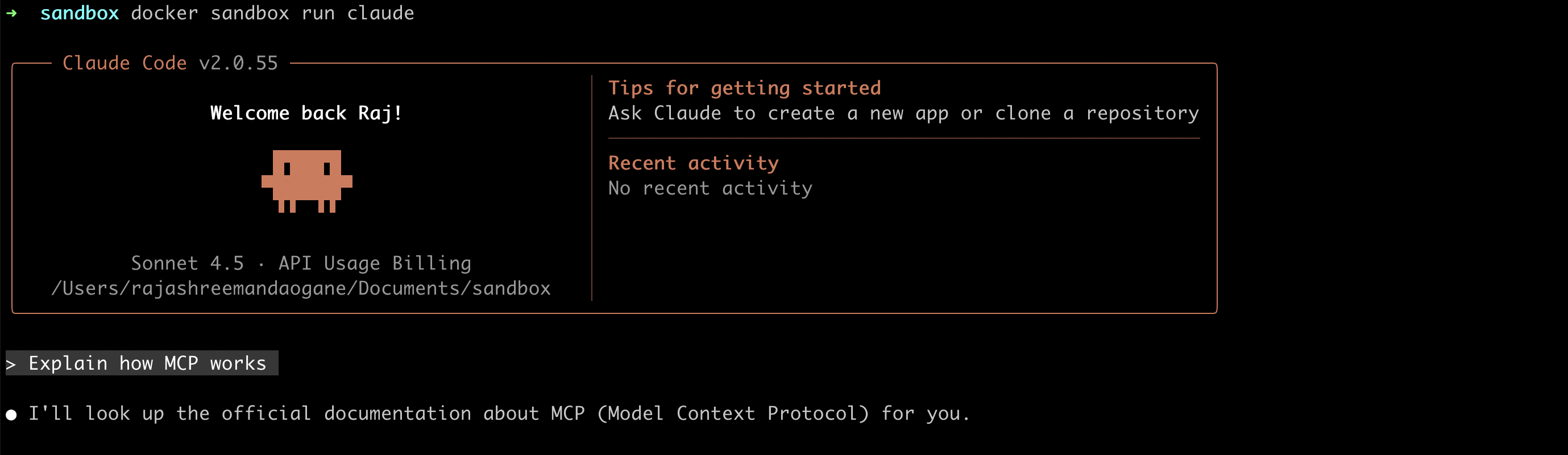
You can start using the coding agent as usual. For instance, the screenshot below shows starting the sandboxed agent, and prompting it with “Explain how MCP works”:
Let’s say your initial session got interrupted, so you want to resume the previous claude session from that workspace, you can do so by running: docker sandbox run claude --continue
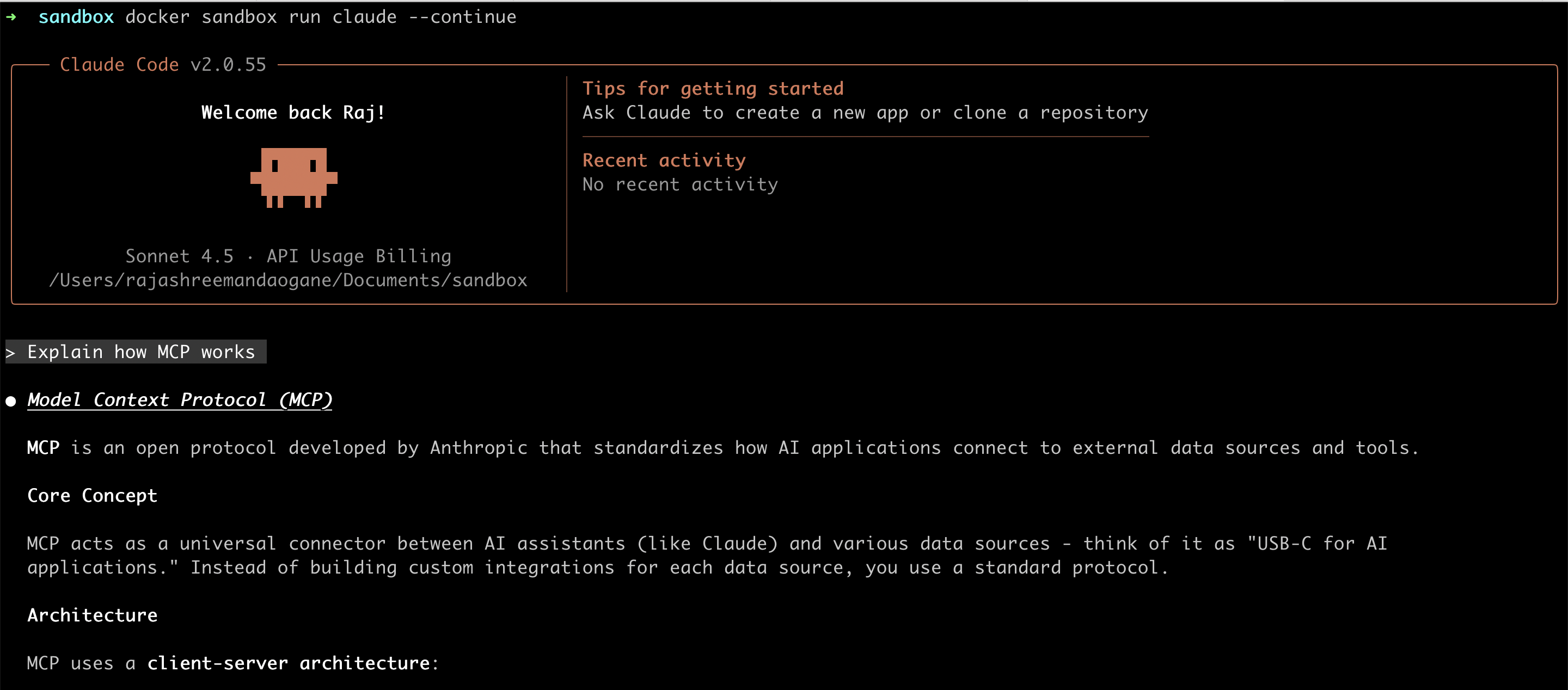
As you can see, this led to the continuation of the previous conversation, where the agent was explaining how MCP works!
Commands
Since this sandboxed agent runs as a container, we will be able to see it by using the same command we use for listing all containers:

Along with this, docker sandbox offers multiple CLI sub-commands:
docker sandbox ls: This is a convenient command for listing all running sandboxed agents

docker sandbox inspect: This command provides you with detailed information about a sandbox:
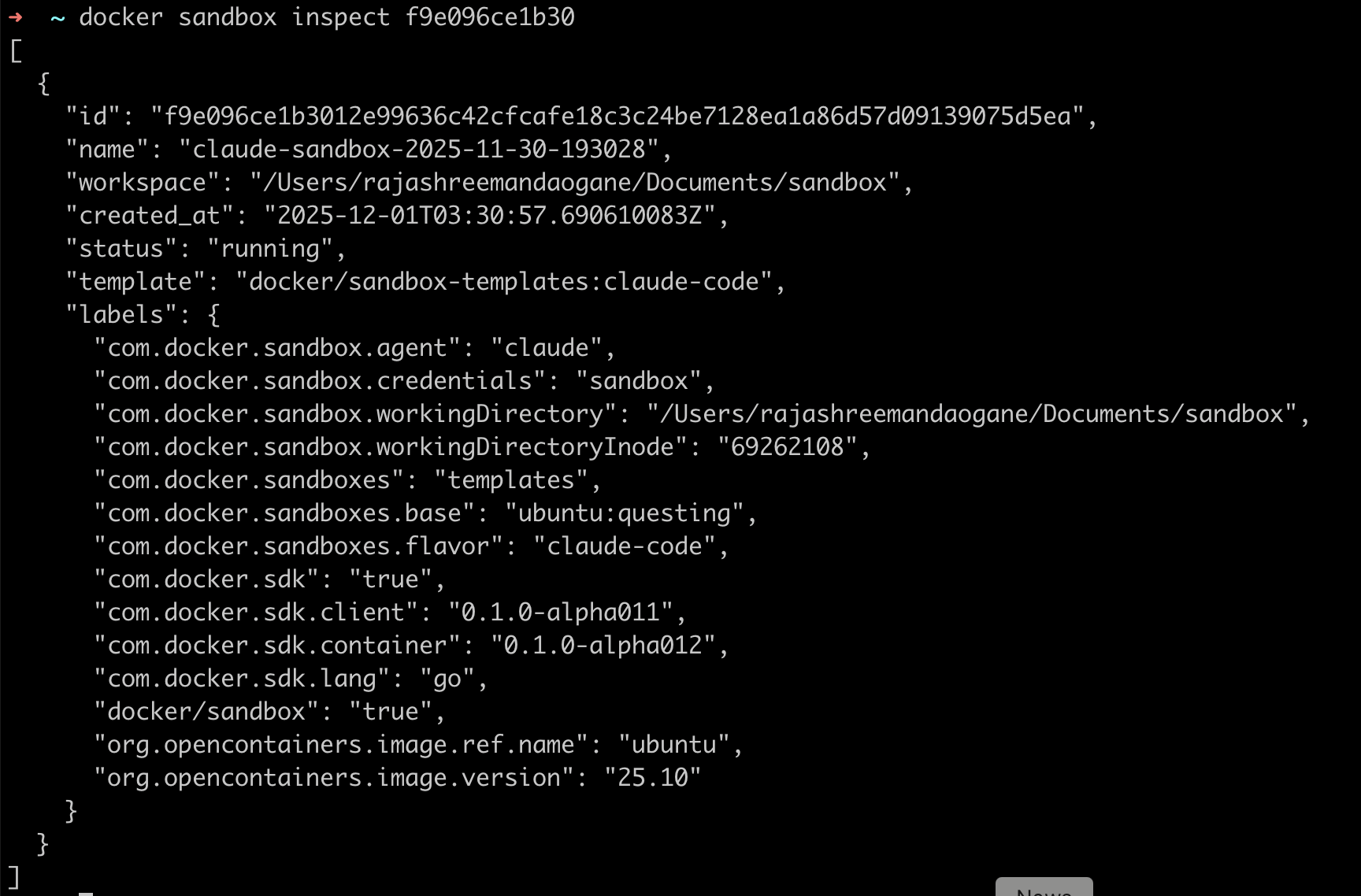
The inspect commands gives all the details about the above sandbox, such as the mounted workspace, and the sandbox template used for its creation.
-
docker sandbox rm: Once you’re done working with the sandboxed agent, you can remove the sandbox using this command
Advanced configuration
Production services and applications rely on configuration data provided through environment variables, secrets and volumes. A developer won’t access the production environment when developing locally, but having a local setup that closely mimics the production environment is important for development. For instance, let’s say your service connects to a database, and the database hostname, username and password are passed to your service via environment variables/secrets. So for local development and testing of this service, you might want to run a Postgres container, and pass its details to your sandbox. You can do so through sandbox environment variables!
Environment variables
You can provide environment variables required for running your application while starting the sandbox. This will get used by all processes within the sandbox.
Let’s take this local postgres container as an example:
➜ docker run -d \
  --name dev-postgres \
  -e POSTGRES_PASSWORD=mysecretpassword \
  -e POSTGRES_USER=devuser \
  -e POSTGRES_DB=myapp_dev \
  -p 5432:5432 \
  postgres:16
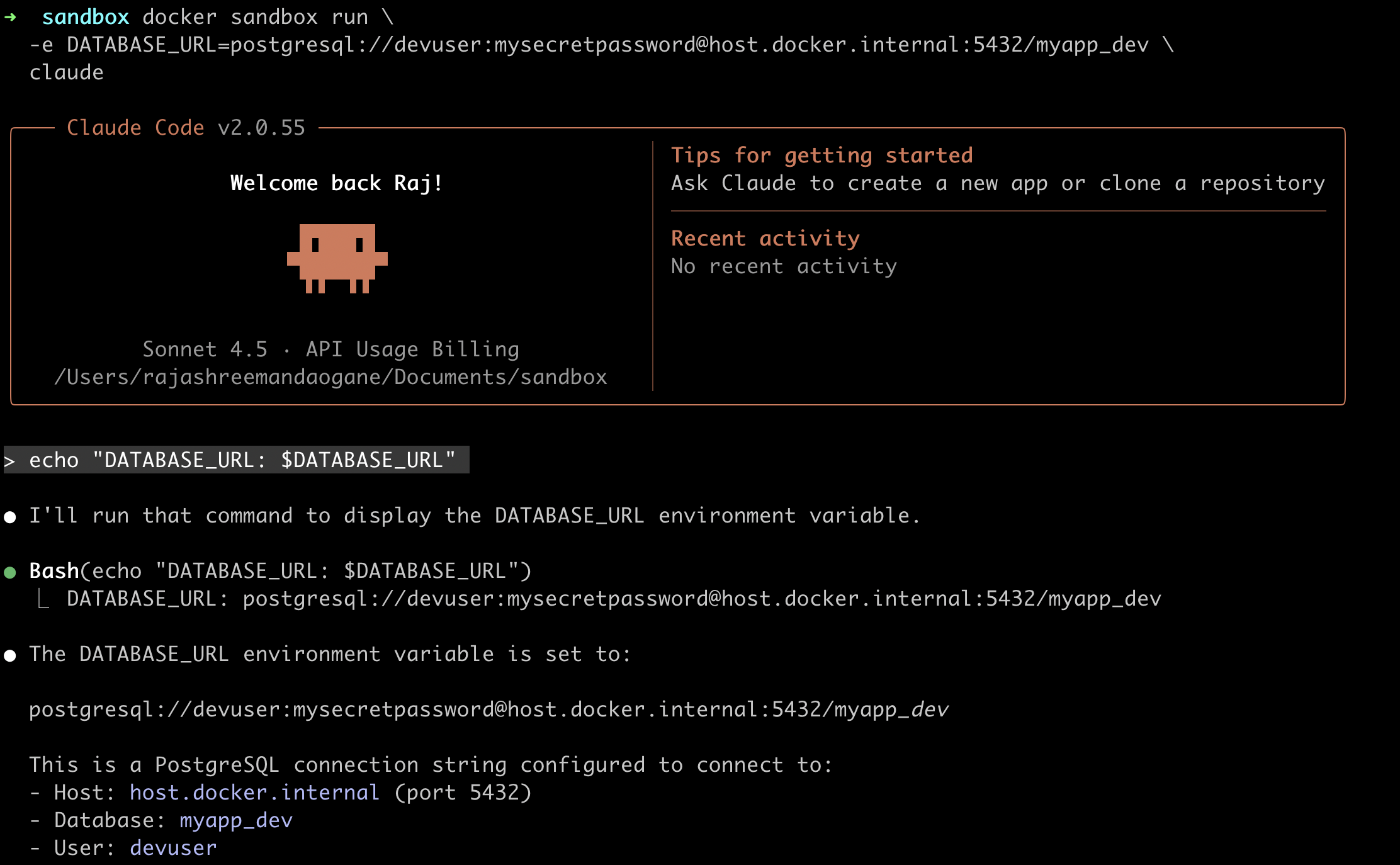
Once it is running, if we want to use it within a sandboxed agent, we can do so by passing its endpoint as an environment variable in the command:
➜ docker sandbox run \
  -e DATABASE_URL=postgresql://devuser:mysecretpassword@host.docker.internal:5432/myapp_dev \
  claude
With this, we will be able to use the Postgres instance within the sandbox
Custom Sandbox templates
Just as we can create custom Docker images, we can now also create and use custom sandbox templates! With this we can create a Dockerfile using the Sandbox template as the base image, add all configuration data we need, and then build a new sandbox template based off of that as follows:
Create a Dockerfile with the following contents:
# syntax=docker/dockerfile:1
FROM docker/sandbox-templates:claude-code
ENV DATABASE_URL=postgresql://devuser:mysecretpassword@host.docker.internal:5432/myapp_dev  #custom configuration
ENV PATH="$PATH:~/.local/bin"
Build the sandbox template image:
docker build -t dev-postgres-env .
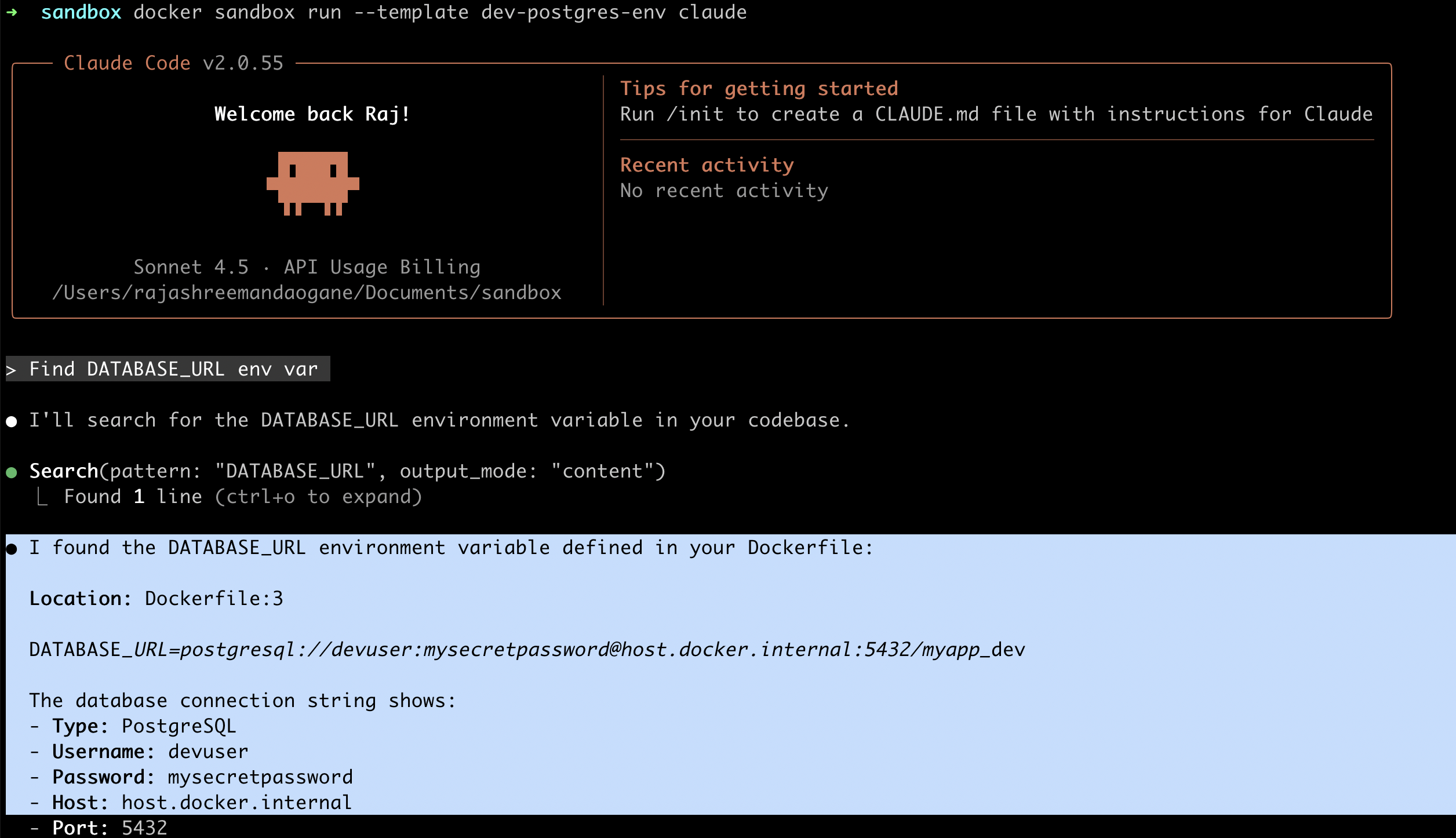
Use this new custom template to start a sandbox:
docker sandbox run --template dev-postgres-env claude
Once the sandbox starts, we can verify that the custom environment variable configured through the Dockerfile can be accessed in the sandbox:
The Sandbox philosophy
Docker has explained in their blog why they chose container-based isolation as opposed to operating system-level sandboxing. The primary reason is that container-based isolation perfectly meets two key goals: security isolation and developer flexibility.
OS-level isolation would have been too restrictive by only isolating the agent process itself, without isolating the full development environment. This would require the agent to constantly request host system access for routine tasks like installing packages and managing dependencies, affecting developer efficiency.
And more importantly, OS-level sandboxing lacks cross-platform consistency, since security mechanisms vary between operating systems. Containers were designed to solve this problem by providing a consistent environment regardless of the underlying OS.
Conclusion
In this blog we went over Docker’s latest announcement on running sandboxed coding agents, the need for container-based sandboxing of agents, and how to use this experimental feature. The official announcement also covers exciting next steps for sandboxes, including support for more coding agents, token and secret management for multi-agent workflows, and more!
The tremendous increase in the use of AI coding agents has made Docker Sandboxes essential.
If you're interested in trying this out, check out the official documentation to get started with sandboxed agents in your own projects!
[story continues]
tags