Every morning, I open Gmail, planning to check messages quickly. Then my brain gets overwhelmed with long email threads, promotions, and updates. Over a cup of coffee, my important emails like “Scheduled VPS maintenance on 2026-02-10 07:00 UTC“ get buried, and 35 minutes disappeared quickly. I even missed the 9:30 am scrum meeting! Over time, this daily habit drained my focus and energy.
My email summary workflow is a lifesaver! It is technically an AI automation workflow, which is a part of business process automation.
I just needed to install n8n (it’s easy!), create a flow using an AI agent, and I get a clear summary. I see only what matters to me.
In this guide, you will learn how an AI-powered Gmail Summary Agent helped me save around 35 minutes a day.
AI Automation in Simple Terms
AI automation means using software to handle repetitive tasks automatically. I do not even need to skim my inbox; the email summary arrives to a different low traffic email id. And my phone dings. While my coffee gets prepared.
For me, this means less time on routine tasks and more time for growth. AI Automation workflow frees you; it does not replace you. Many workflows still need a human in the loop – especially social media post generators!
What Is n8n and Why Founders Love It
n8n is an AI Automation workflow tool that connects apps without heavy coding. It uses visual blocks called nodes to build automation. My first node was an AI Agent node that uses Groq, a free AI model provider. It was very easy to build – even a child can drag and drop nodes, right?
I love hosting the n8n instance on my own server in Bangalore – thus ensuring that client data stays in-house and within the country. The self-hosted version is free for developers and very affordable if you already have a server to spare.
What Are AI Agents and How Do They Work
AI agents are like personal assistants that never sleep, need coffee or bathroom breaks. They are always ready and happy to help! In email workflows, they read messages, think, analyse and create summaries.
Instead of hundreds of emails, you receive one clear report organized by categories (You will see the cool output later). Feel free to tweak the workflow to your liking!
The Problem with Managing Emails Manually
Last week, I missed an SBI Credit Card Statement – it got lost in the noise. Last month, I missed an important email from my kids’ school – their admission procedures. Luckily, I was able to find it before the due date after my dad reminded me of it! See the problem?
Ding! The ping of a new email breaks my chain of thought. It’s very disturbing. So, my notifications are now off for Gmail. It’s easy to make blunders when distracted.
Before I ran the AI automation workflow, I was too busy to check my mail often. Many emails slipped through.
How the Gmail Summary Agent Works
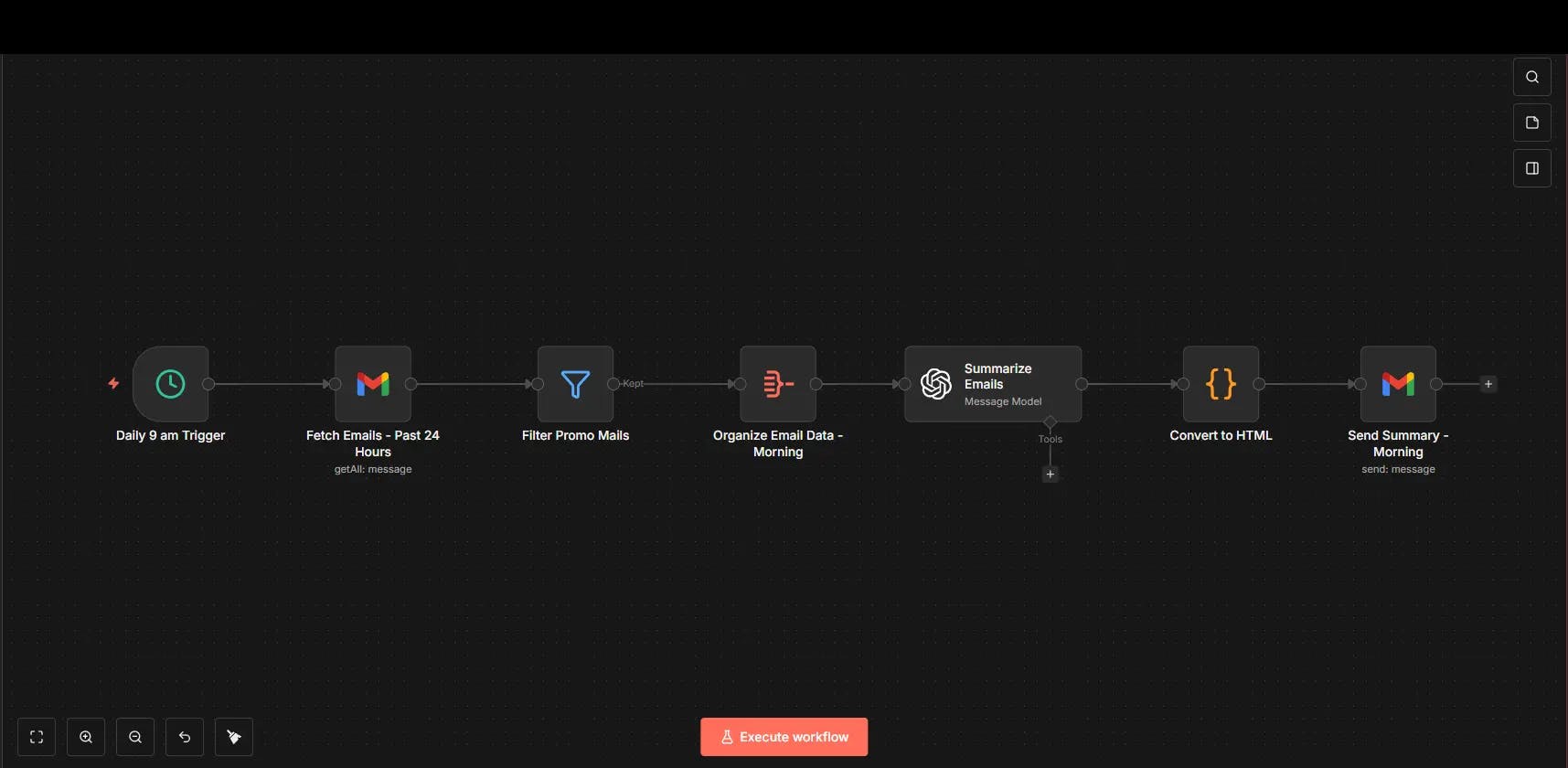
The Gmail Summary Agent is an n8n AI automation workflow that runs automatically at a set time every day.
It gets unread emails for the past 24 hours, removes spam and promotional mail, analyses content using an OpenAI node, creates a category-wise summary and sends it to an email id of your choice. The summary also highlights action items under the “Actions to Take” section.
You receive one summary instead of many emails. Once set up, the system works daily with no manual effort.
Here is the complete workflow, ready to import into n8n. Give it a try on your local PC or server and let me know!
In-Depth Study of the Workflow
This Gmail Summary Agent follows a set process. Each step plays an important role in making the automation reliable. Note that the workflow is completely customizable.
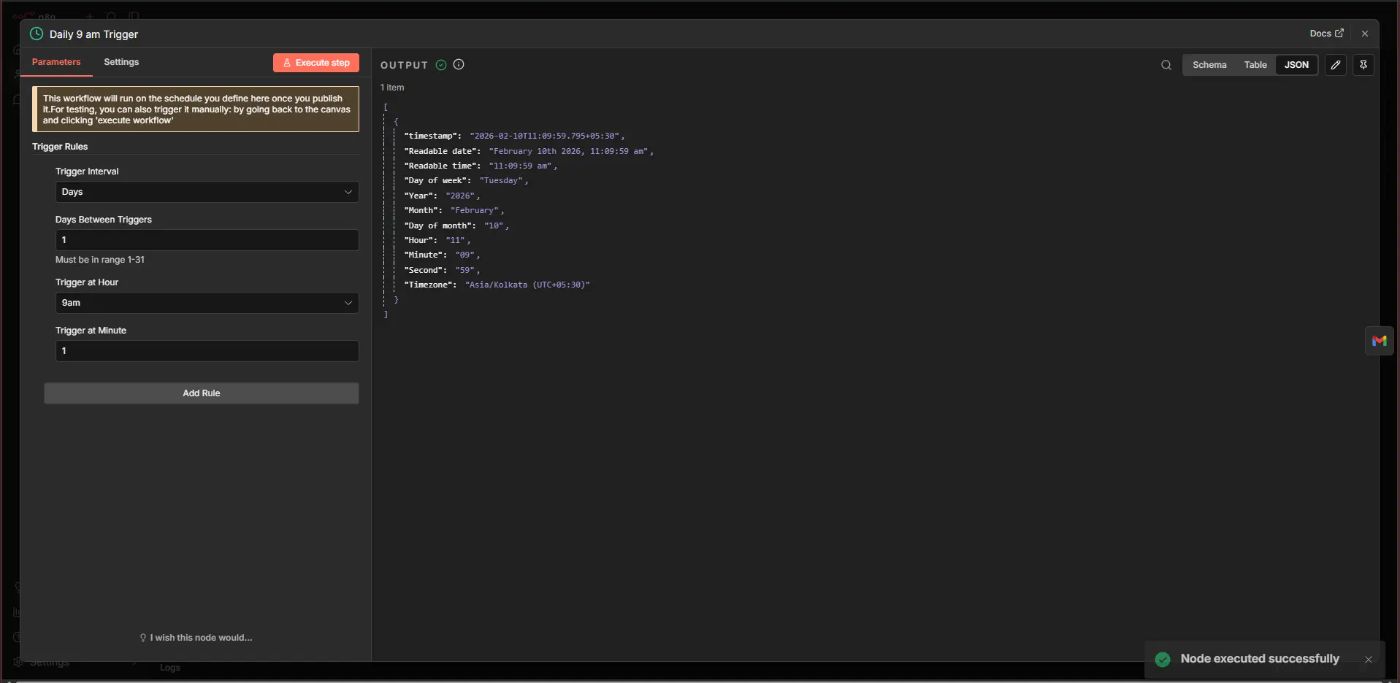
Step 1: Scheduled Trigger
The Schedule Trigger node starts the workflow at a fixed time every day. For example, 9:00 AM. This ensures you receive your summary before starting your work.
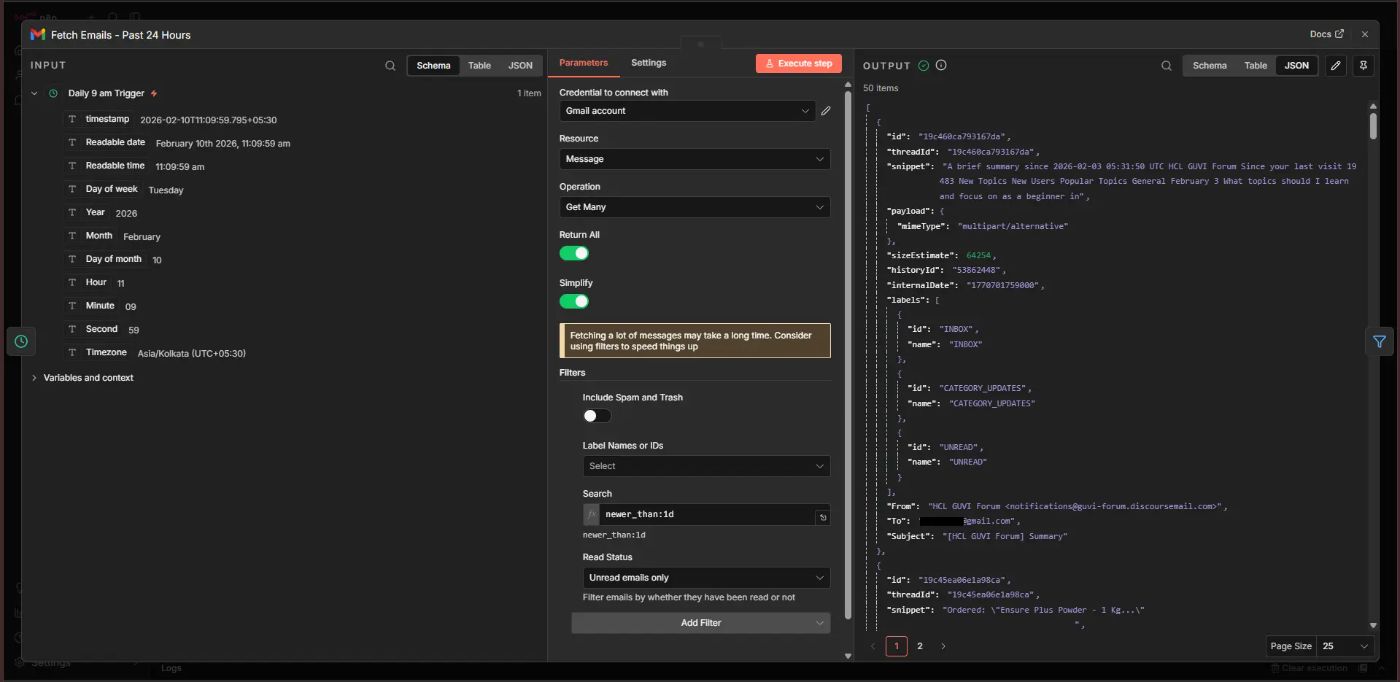
Step 2: Fetching New Emails
The Gmail node connects to Gmail using the given credentials and collects unread emails from the past 24 hours. I used a search filter for this: newer_than:1d
Most n8n node windows contain 3 sections:
1. Input from the previous node
2. Current node configuration
3. Output of the current node
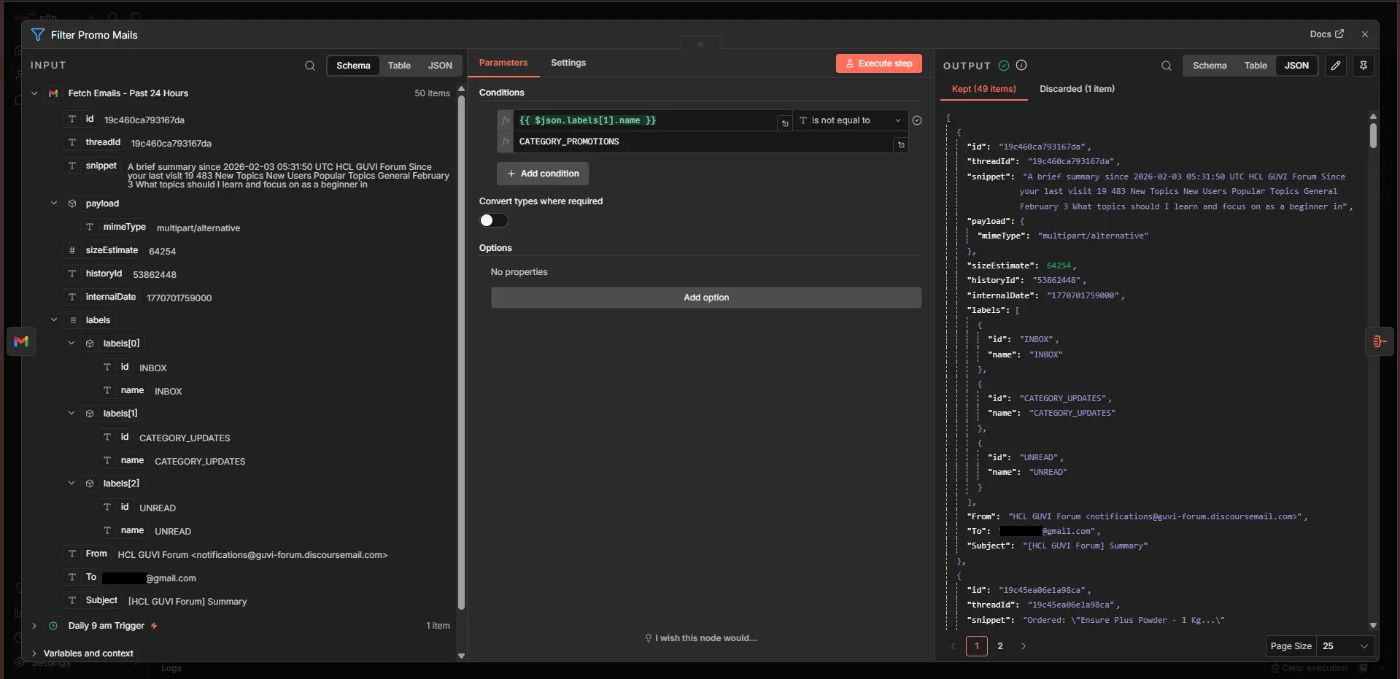
Step 3: Filtering Promotions
Unwanted emails, such as ads and newsletters, are removed. This improves summary quality and reduces noise. I used a Filter node to exclude emails that have the label: CATEGORY_PROMOTIONS
Step 4: Organizing Email Data
Next, an Aggregate node is used to extract important details like id, From, To, snippet, Subject, threadId into a single list. These fields are useful for later nodes.
The output becomes an array of JSON objects that is sent to the AI node as one item for easy processing:
[
    {
        "data": [
            {
                "id": "19c460ca793167da",
                "threadId": "19c460ca793167da",
                "snippet": "A brief summary since...",
                "From": "HCL GUVI Forum <xxxxxx@guvi-forum.xxx.com>",
                "To": "xxxxxxxx@gmail.com",
                "Subject": "[HCL GUVI Forum] Summary"
            }
        ]
    }
]
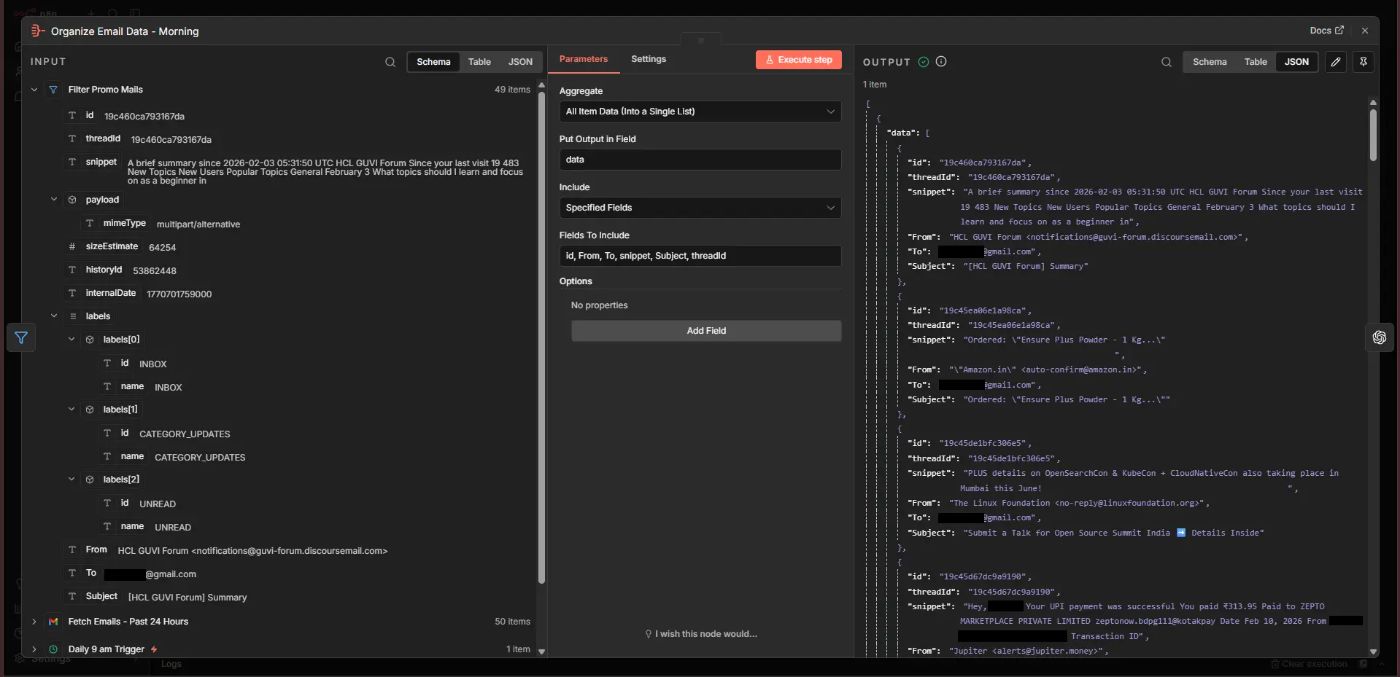
Step 5: AI Summary and Categorization
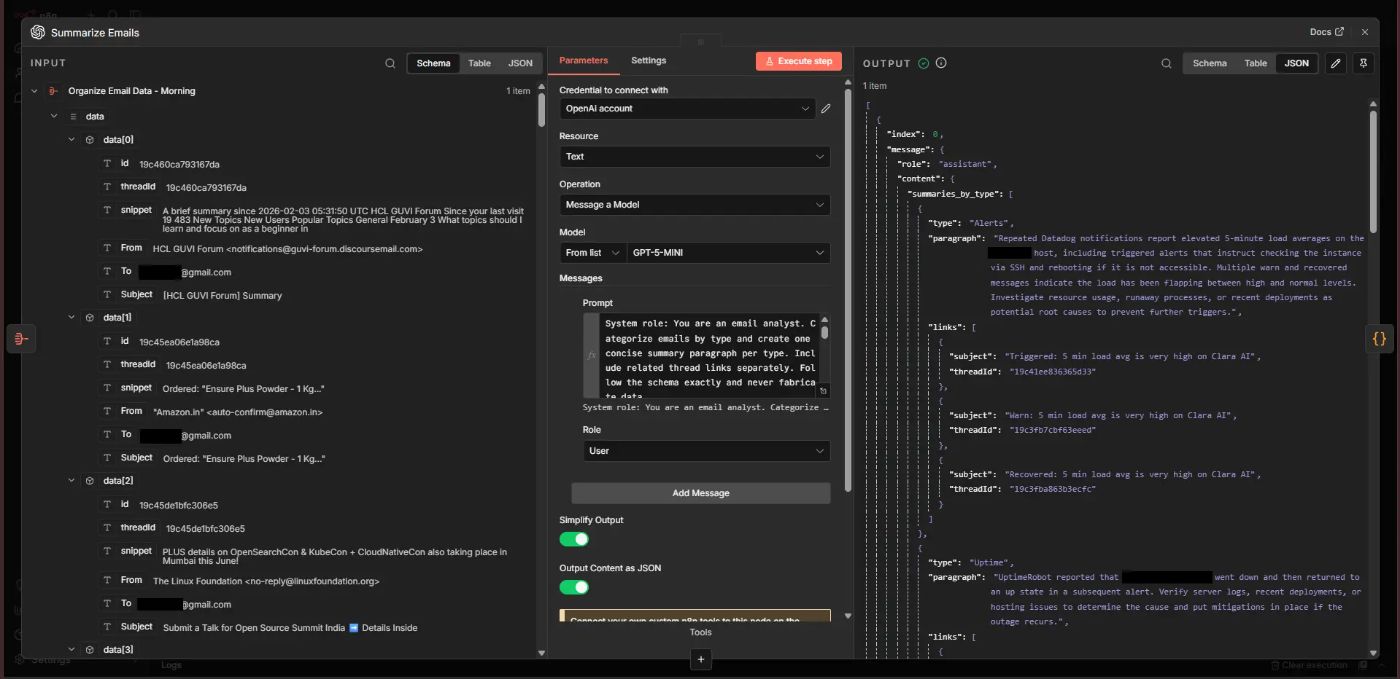
Using the “Message a Model” action of the OpenAI node, the AI agent reads the email snippets. It groups them by type. It creates short summaries. It collects the email subjects and thread IDs for that type. It finds tasks that need action.
You need to decide which AI model provider and model to use. I used OpenAI’s gpt-5-mini model here. Create OpenAI credentials before configuring this node.
You will need a User Prompt to give directions to the AI model for what it needs to do.
Here’s the full prompt.
The prompt also contains the JSON schema to guide the AI model to produce proper JSON output for further steps.
Important JSON keys
“type” – Category of this set of mails.
“paragraph” – A summary of the set of mails that fall under the above category
“links” – Email Subject and Thread ID, which will be used by downstream nodes to generate links to that specific mail.
Step 6: Creating the HTML cards
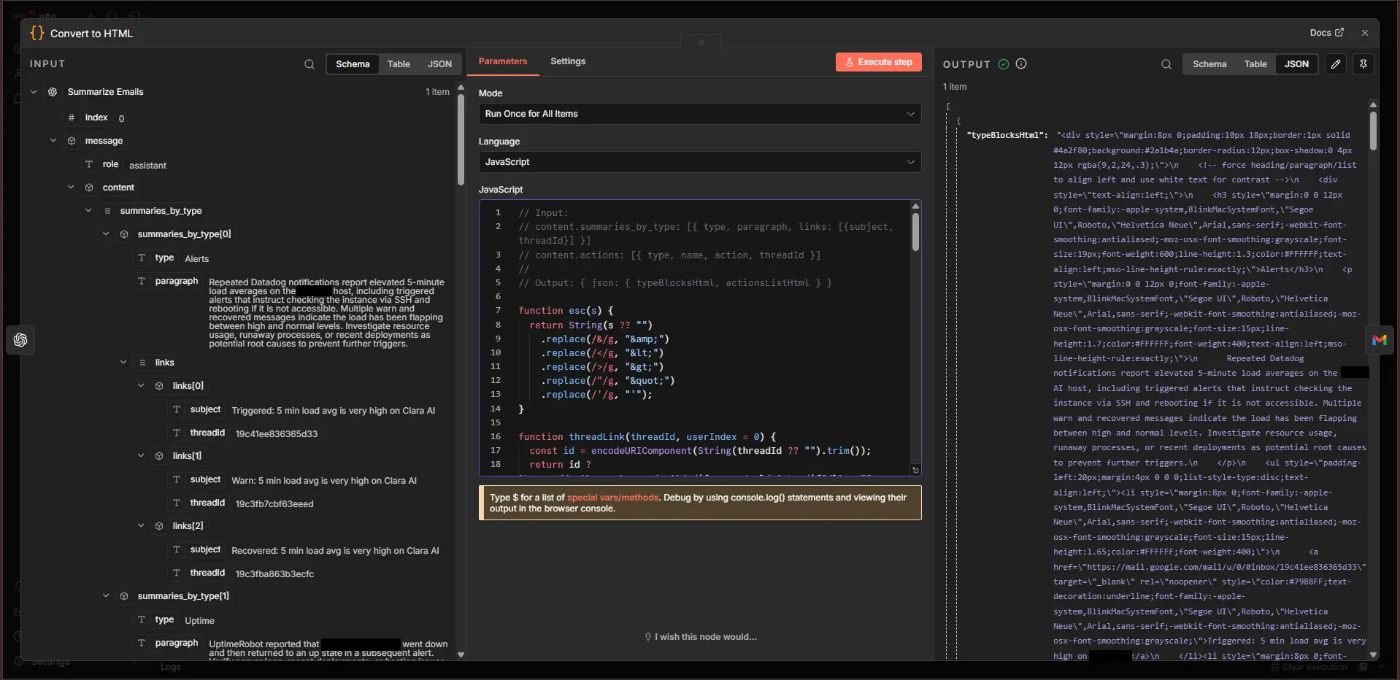
The Code node (JavaScript) is used to convert the AI output into well-styled Category and Action HTML cards. This makes the report easy to read and understand.
Here’s the full code.
Step 7: Sending the HTML Summary Email
Using the “Send a Message” action of the Gmail node, the well-formatted HTML summary is sent to your inbox. You receive one clear summary with everything you need.
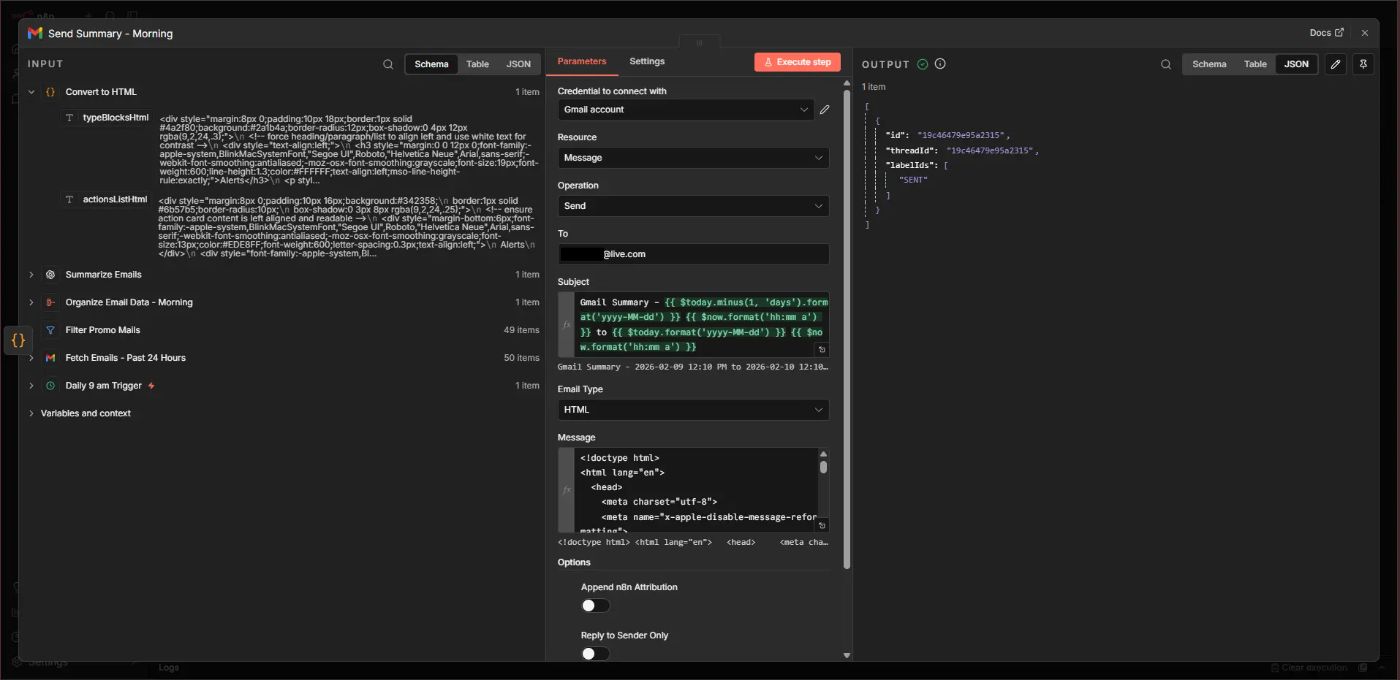
This complete process forms an AI automation workflow that runs daily without supervision.
The Message area contains HTML code that forms the core structure and styling of the summary email. Feel free to modify it according to your liking.
Here’s the HTML code.
In the code, these blocks contain n8n expressions (JavaScript) that reference the output (cards) from the previous Code node:
<div class="cards">
        {{ $json.typeBlocksHtml }}
</div>

<div class="section-title">Actions to Take</div>
<div class="actions-container">
        {{ $json.actionsListHtml }}
</div>
The Email Format
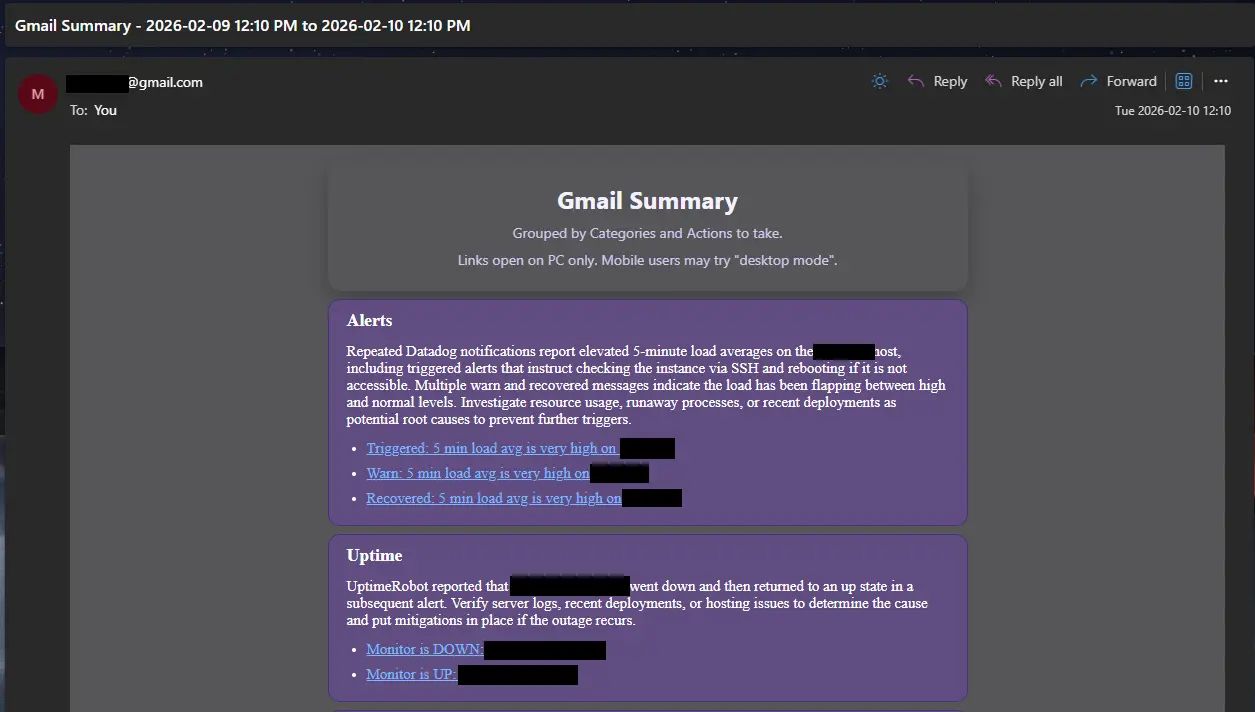
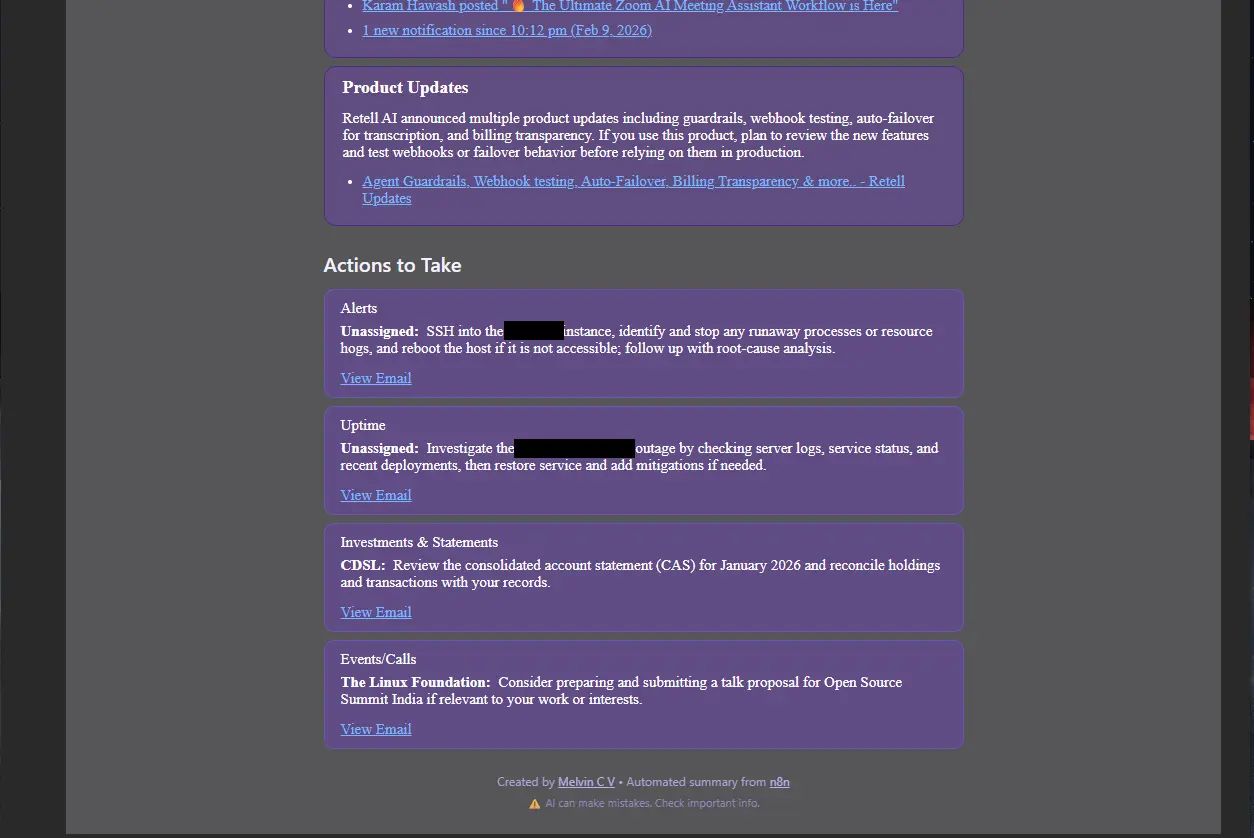
The email summary is in HTML format and is arranged cleanly in the form of category-wise cards. Below the category cards are the “Actions to take” cards.
Here’s an example from my inbox:
How AI Categorizes and Summarizes Emails
Once emails are collected and filtered, the AI model starts its work. It reads each message carefully, like how a human would scan emails and decide what matters most.
The AI model groups related emails together. For example, Server monitoring alerts from UptimeRobot and Datadog may go into one category card, at the top.
The most important category cards are added at the top. Thus, the order of high priority is from top to bottom. Investment updates go into another category card, just below monitoring.
Security Alerts form a separate category card. This includes emails from Google Cloud regarding security best practices and a public interest notification from ICICI Bank, warning me of digital arrest scams.
After grouping, the AI model creates a short summary paragraph. This paragraph explains the main points from multiple emails in each category card in a concise way.
The AI model also looks for action items. If an email asks for approval, feedback, or a reply, it highlights that task. This helps you avoid missing important responsibilities.
Once the AI automation workflow is set up, the entire thing runs in the background. No manual steps needed.
Delivering the Summary to Your Inbox
You do not need to log into any dashboard - The summary arrives like a normal Gmail or Outlook message. Or Yahoo, if you prefer that.
I set the AI automation workflow to send the summary to another low-volume inbox so that I get one ‘ding’ in the morning, and that’s it. Great.
The email includes clickable links. Need more details? You may open the original email thread with one click. This saves time compared to searching manually in Gmail.
(Links only work on PC, Mac or Linux. Not on phones for now.)
Real Time Savings for Busy Professionals
One of the biggest pros of using a Gmail Summary Agent is time savings.
“The average professional spends around 2.5 hours per day reading and answering email, which is roughly 25–30% of their working time.” - Readless
With this n8n AI automation workflow, the colourful category cards attract my attention. 5 to 10 minutes is all it takes to skim through the summary, but pause and digest the most important points.
“AI‑powered email automation can cut 50–60% of the time spent on email‑related tasks, often saving several hours per week for heavy email users.” – Artsmart Blog
For those who manage clients, teams, and partners, the time saved gives them a major edge over their competitors.
Business Benefits Beyond Time Saving
Saving time is nice, but what really got me excited? Well-built AI automation workflows! And the build process itself. It’s so satisfying to see them run without bugs and deliver results every time.
First, it boosts response speed. When important emails are highlighted, you reply faster. This strengthens client relationships and builds trust.
Second, it tightens task management. Action items are clearly listed. You no longer rely on memory. Nothing important slips through the cracks.
Third, it enhances decision-making. When information is organized and summarized, you see patterns. You understand priorities better. You make smarter choices.
Fourth, it reduces stress. A clean inbox reduces anxiety. You feel more in control of your workload. This leads to better focus and long-term productivity.
Finally, it supports scalability. As your business grows, email volume increases. Automation allows you to handle more work without burning out.
Customizing the AI Gmail Summary Agent
An IT company founder works differently, compared to a clothing chain founder. That is why customization is a key strength of this workflow. You can adapt the AI automation workflow to match your business needs.
Changing Summary Frequency
Some prefer daily summaries. Others want two summaries per day. You can add multiple rules to the Schedule Trigger node in n8n to achieve this. I tried adding one at 9 am and another at 6 pm and it works!
Adding Priority Senders
You can mark important clients, investors, or partners as priority contacts. I could mark my company as important using the system prompt of the OpenAI node. Emails from these senders will be highlighted in the summary.
Adjusting AI Instructions
The AI agent follows prompts. You can change these instructions to make summaries shorter, longer, or more formal. This improves accuracy and relevance.
Integrating with Other Tools
The AI Agent can be connected to a wide variety of tools. For example, action items can be sent directly to Trello, Notion, or Slack. For this, just replace the “Message a model” node with an AI Agent node and connect a model and tools to it.
Scaling for Teams
For growing companies, the system can be expanded for teams. Each department can receive its own summary. This is an interesting AI automation workflow use case that I have yet to pursue.
Future of AI Email Management
Microsoft states Copilot in Outlook can scan an email thread and create a summary, showing email workflows are being augmented with AI capabilities that go beyond traditional rules/filters. - Microsoft Copilot in Outlook
With Gemini in Gmail, you can: Summarize an email thread. Suggest responses to an email thread. Draft an email. Find information from previous emails. Find information from your Google Drive files. Get information about Google Calendar events. Create events in Google Calendar. – Google, Gmail Help
Gartner predicts that by 2028, more than 20% of digital workplace applications will use AI-driven personalization algorithms to generate adaptive experiences, supporting the idea that workplace tools (including communication apps like email) will become more personalized over the next few years. - Gartner
Market tracking indicates rapid growth in “AI-powered email assistant” products, with one market report projecting growth from $1.74B (2024) to $2.11B (2025), consistent with an evolving, expanding category. – Research and Markets
Advanced AI automation workflows will become a standard in modern businesses, just like accounting or CRM software is today.
Turning Inbox Chaos into Clarity
Managing emails does not have to be stressful. With the right workflow, your inbox can become well organized – also check out Jono Catliff’s Email Inbox Manager, which I also set up on my n8n instance. But it will check for new emails every minute, so reduce the scheduler’s frequency if you are concerned about API costs!
It is an AI automation workflow that uses an AI Text Classifier node to segregate emails by adding labels according to their content. It then identifies emails that need a reply and drafts a reply in the same thread (for you to review). It saves time. It reduces mental fatigue. It improves decision-making.
For busy professionals, this is more than convenience. It is a strategic advantage. It allows you to use that time to be more productive. Develop new strategies. Take on new challenges. Lead teams. Change the world, maybe?
[story continues]
tags