Storage Sense in Windows 11: Storage Sense is like having a personal assistant for your computer’s storage. It is a built-in feature in Windows 11 designed to help you manage disk space automatically. It works by monitoring storage usage and deleting unnecessary files—such as temporary files, system cache, and items in the Recycle Bin—to free up space on your drive. It also offers various customization options to suit different user needs; as a result, it is not turned on by default in Windows 11. This article will walk you through the steps to enable Storage Sense in Windows 11. Check out: How to Enable Developer Mode in Windows 11?
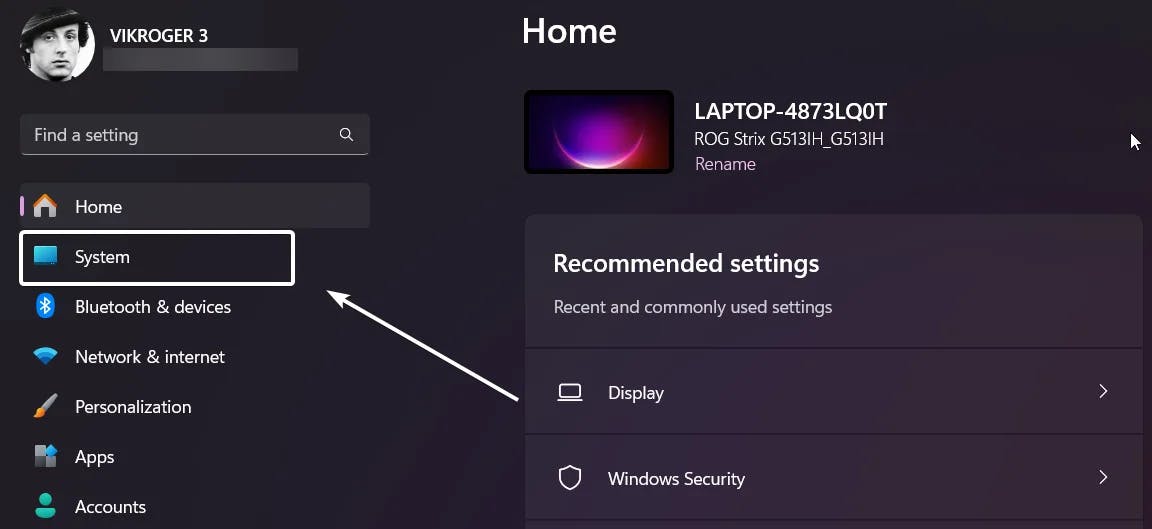
- Open Windows Settings using the keyword combination Win Key + I.
- Click on the System option that is available in the left pane.
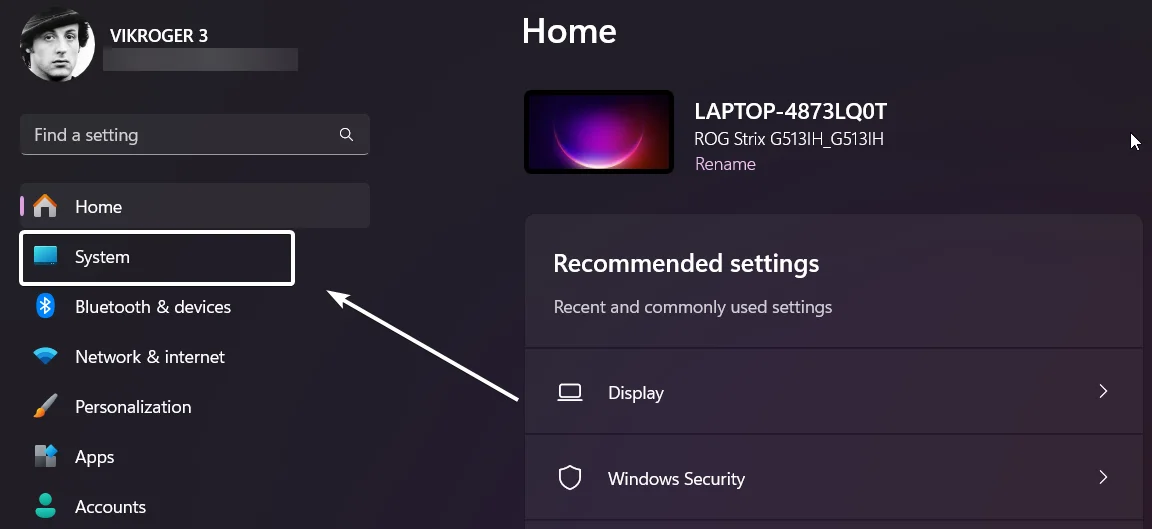
- Under System, you can find Storage.
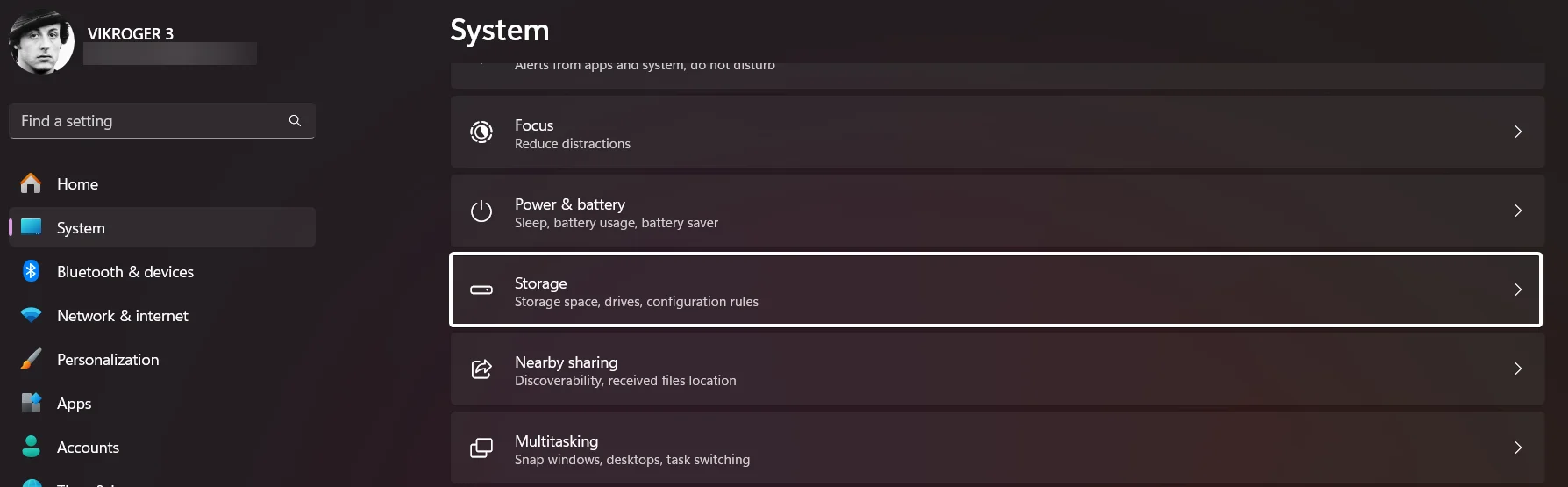
- You can find Storage Sense under Storage Management.
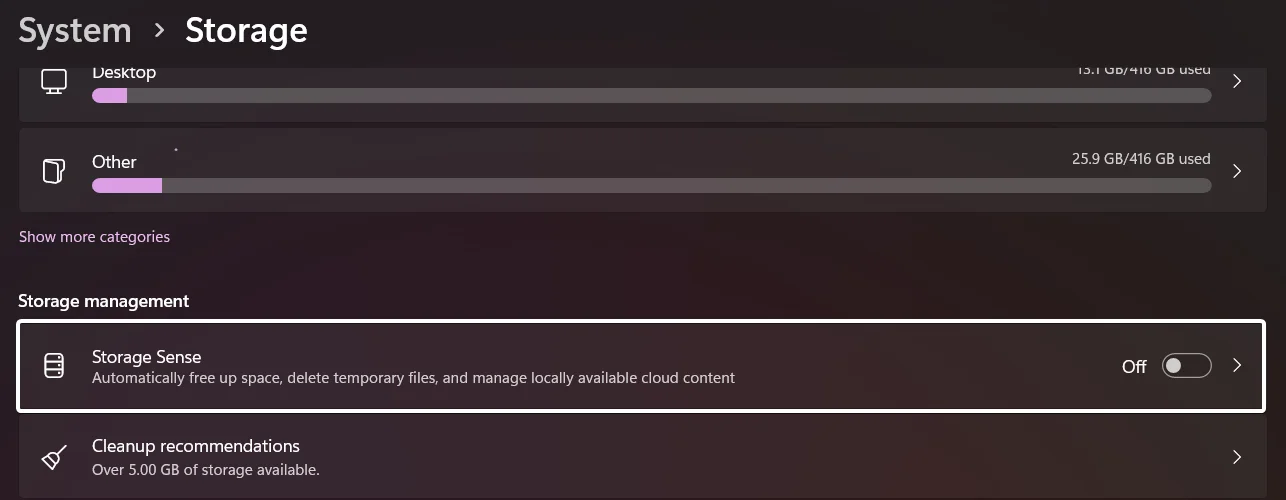
- Toggle the Storage Sense switch to ON to turn on this feature in Windows 11.
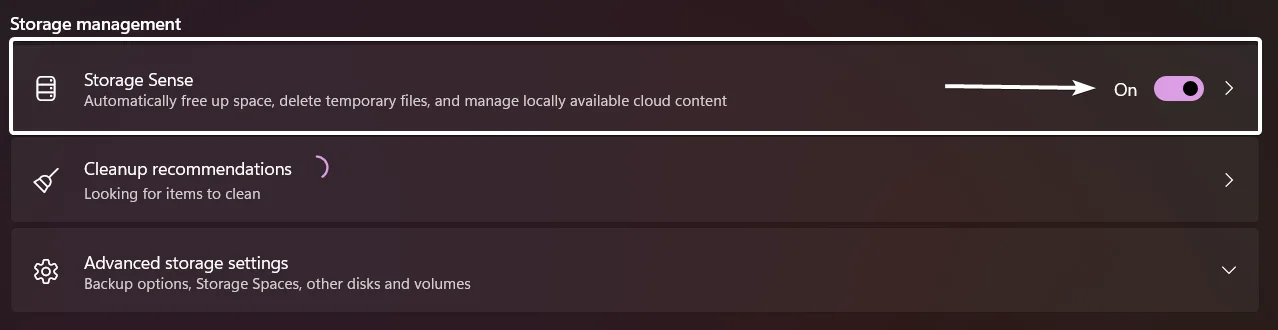
- That is it, Storage Sense is now enabled in your Windows 11 PC. Next, let’s check out the Customization options available in the Storage Sense Feature.
Warning: While Storage Sense is a powerful tool for managing disk space, careful configuration and regular monitoring are essential to prevent accidental deletions. By setting appropriate retention periods, reviewing settings, maintaining backups, users can make use of this feature effectively in Windows 11.
Storage Sense Customization Features in Windows 11
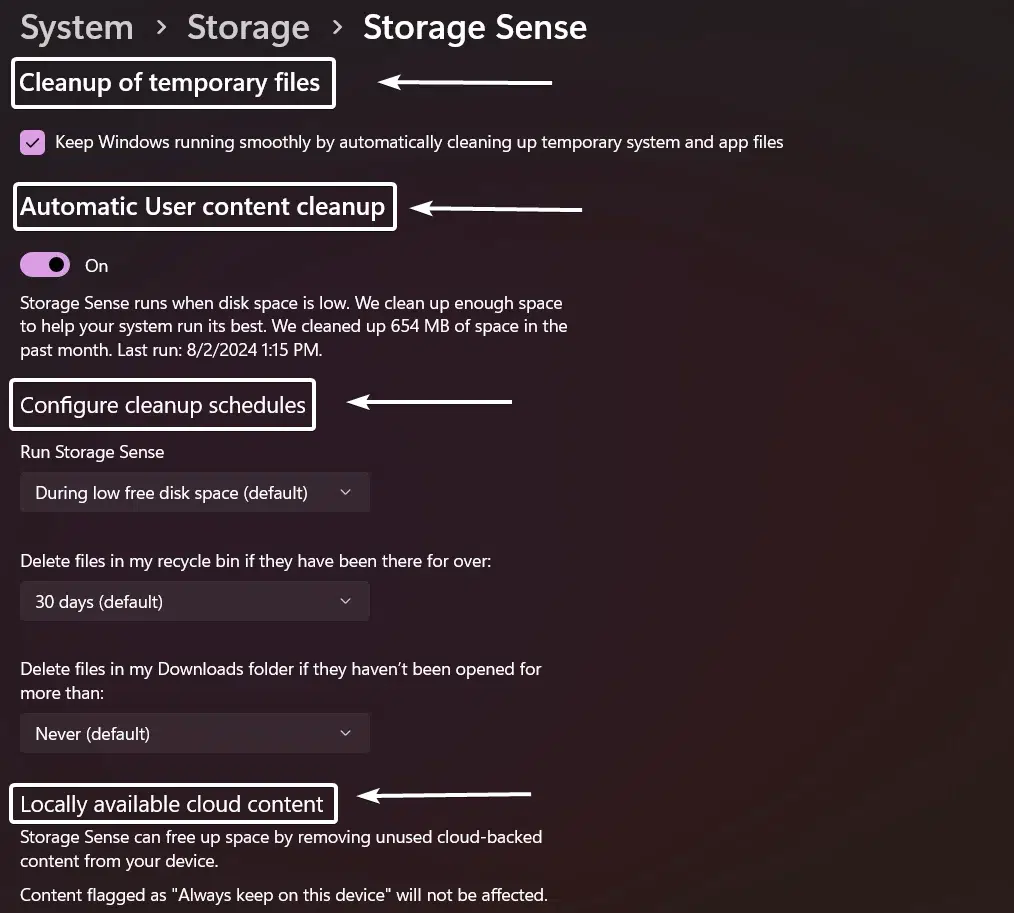
It offers various customization features like:
- Cleanup of temporary files.
- Automatic User content Cleanup.
- Configure Cleanup Schedules.
- Locally available cloud content.
Cleanup of Temporary Files
Temporary files are created by the operating system and various applications to store intermediate data. These files are intended to be short-lived and often include System Cache Files, Application Cache Files, Temporary Internet Files, and Installation Files. Storage Sense continuously monitors your system for temporary files that can be safely deleted without affecting system performance or user data. Storage Sense provide the flexibility to turn on on turn off this feature in Windows 11 according to the user convenience.
Automatic User Content Cleanup
Automatic User Content Cleanup targets user-generated files that can accumulate over time, such as items in the Downloads folder and files in the Recycle Bin. These files can take up significant storage space if not managed properly. It identifies files that haven’t been accessed or modified within a specific time frame, making them candidates for deletion. Users can set specific rules for how long files should be kept before being deleted, providing flexibility and control over the cleanup process.
Configure Cleanup Schedules
This section allows users to set the rules for the Storage Sense, from when to Run the Storage Sense, When to delete the files in the Recycle bin to when to delete the files in the Downloads Folder. Each of the option has different Time Frame and users can setup the triggers for Storage Sense.
Locally available Cloud Content
This is an interesting feature and it focuses on optimizing the use of cloud storage services automatically managing files that are stored both locally and in the cloud. Locally Available Cloud Content refers to files that are stored in cloud storage services like OneDrive but are also accessible locally on your device. These files can take up significant storage space on your local drive, even though they are backed up in the cloud. Files that haven’t been used for a specified period are converted to online-only. This means the file remains in your OneDrive but is removed from local storage, freeing up space.
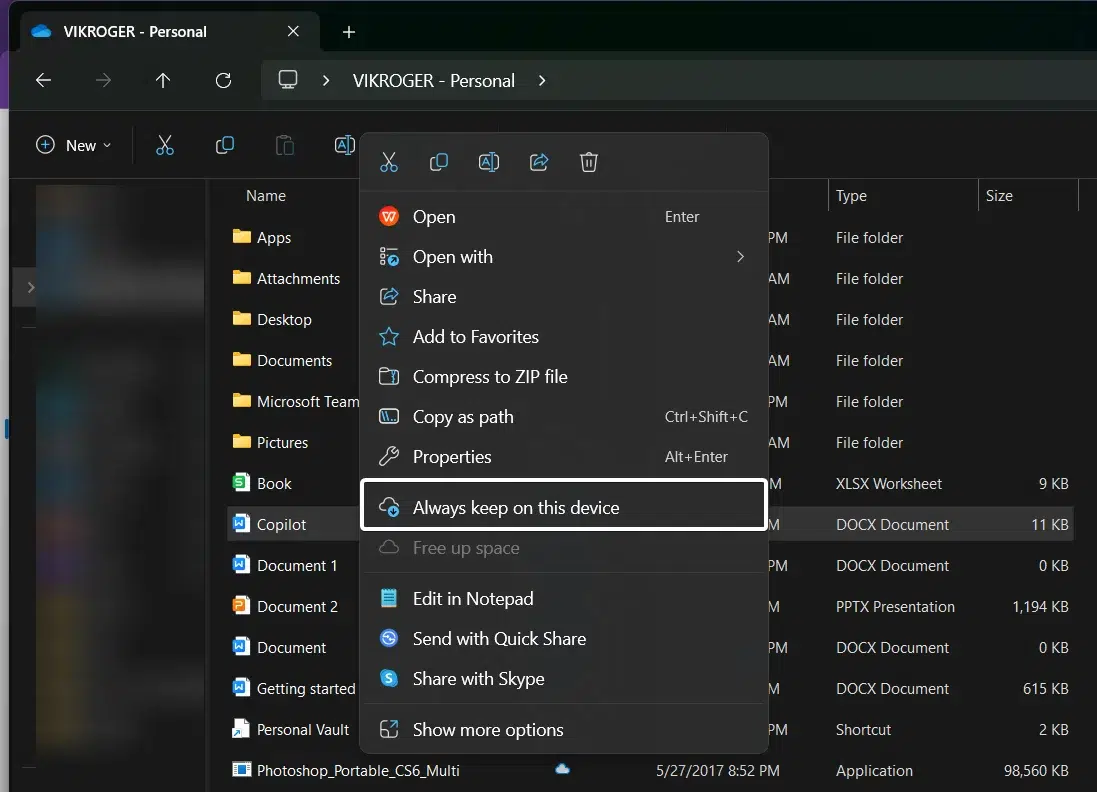
Always keep on this Device on your system OneDrive allows files to be accessible both locally and online if marked accordingly.
Note: Storage Sense was first introduced in Windows 10 in 2017 with the Creators Update and has been carried forward and improved in Windows 11.
How to manually run Storage Sense in Windows 11?
Storage Sense can be run manually in Windows 11, allowing you to initiate a cleanup of your system at any time. This can be particularly useful if you need to quickly free up space or if you prefer to manage your storage on-demand rather than relying solely on automated schedules.
- Using the above listed steps, let’s assume we are in the Storage Sense.
- Scroll down and locate Run Storage Sense now. Click on that.
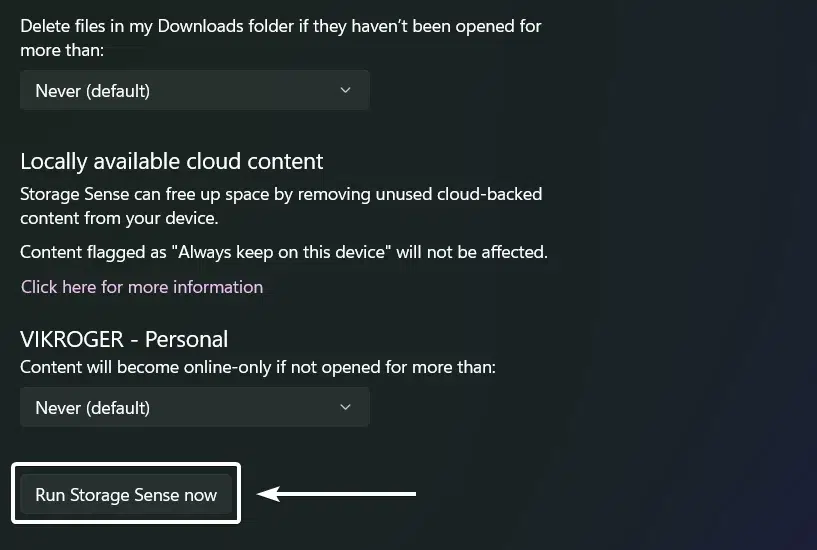
- Storage Sense will run now irrespective of the rules set up in the configure cleaning schedules. The process will take a few minutes to complete. That is it. For me, Storage Sense quoted, “We clean up enough space to help you system run at its best. We cleaned up 654 MB of space in the past month.” Good luck to you too!
Takeaway
Storage Sense in Windows 11 is a powerful tool for automating disk cleanup and managing storage space efficiently. Proper use of Storage Sense ensures that it remains a helpful tool for keeping your system clean and optimized without compromising valuable data.
Did we help? Let us know in the Comments. If you find this information useful, kindly let me know in the comments. For more interesting articles, stay tuned to winsides.com. Happy Computing! Peace out!
[story continues]
tags