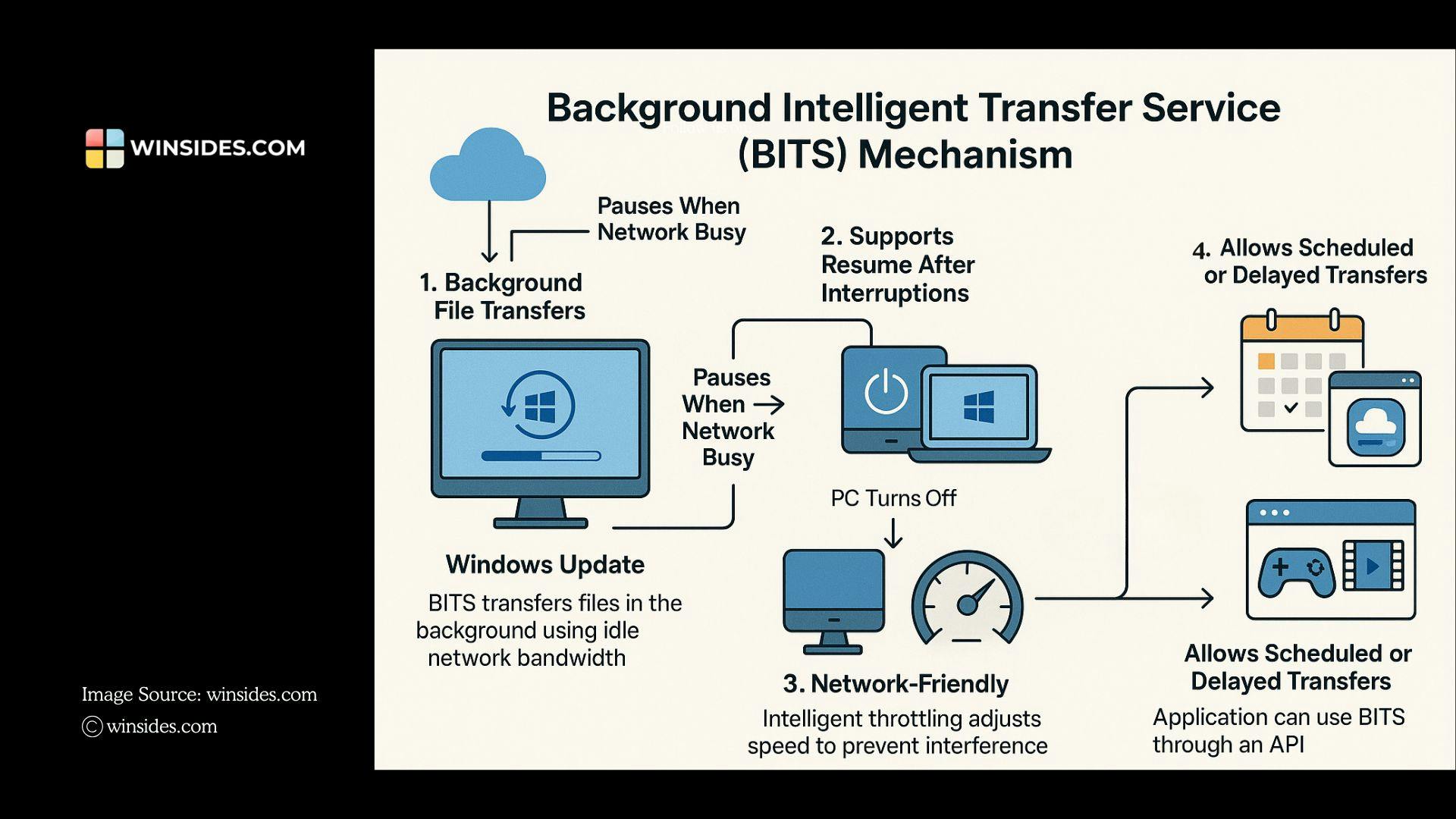
Background Intelligent Transfer Service (BITS) is a Windows component that transfers files to and from the network in the background, utilizing only idle network bandwidth. It is the engine behind many Windows updates and Application update flows, and it is available to programs and administrators through APIs, PowerShell, and other command-line tools. In this article, let’s explore the Background Intelligence Transfer Service in detail. Let’s get started.
Key Functions of the Background Intelligent Transfer Service
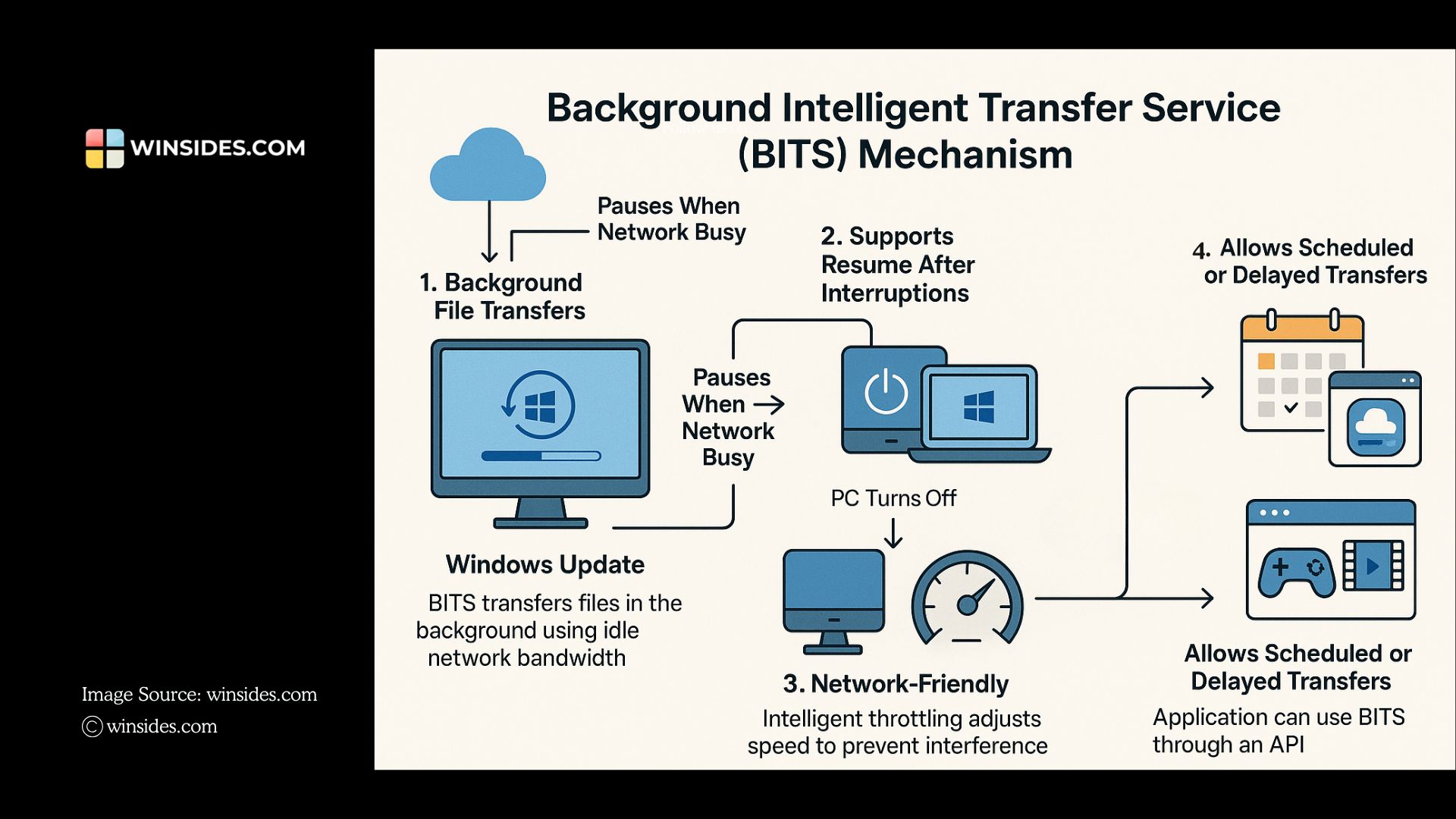
The functionalities of BITS include the following operations:
- Background Intelligent Transfer Service schedules file transfers when the system is not actively using the network. If the PC is turned off or the internet connection is interrupted, then BITS can resume the download and upload process from where it stopped.
- Many Microsoft Services, including the Microsoft Store and Windows Update, rely on BITS for their functionality.
- BITS is network-friendly as it uses Intelligent throttling, which means it adjusts speed automatically without interfering with Streaming, Browsing, Gaming, etc.
- For Developers, the Background Intelligent Transfer Service can be used to schedule file transfers for background syncing services, such as OneDrive and Microsoft Defender.
BITS has evolved significantly over the years and is crucial for various Windows-related services, including Windows Update, Windows Server Update Services, System Center, Diagnostic Uploads, Telemetry Uploads, Microsoft Defender updates, and more.
How to Control BITS on Windows 11?
On Windows 11, there are several ways to access the Background Intelligent Transfer Service on Windows 11, both GUI and CLI.
- Open Background Intelligent Transfer Service using Services.msc
- Use BITS using the Command Prompt
- Access Background Intelligent Transfer Service using Windows PowerShell
- Configure and run BITS using BITSadmin
Let’s go over the above methods in detail.
Getting Started with BITS on Windows 11 using Services
- To Access BITS on Windows 11 via
services.msc, Go to the Run Command using the keyboard shortcut WinKey + R. - In the Run, execute the following command
services.msc - You can locate Background Intelligent Transfer Services from the list of services.
- Now, you can find various information related to BITS, such as Status, Start Type, Log On As, and more.
- Right-click on the BITS, and you can find more options such as Start, Stop, Delayed Start, Properties, All Tasks, and more.
- The BITS Properties option provides access to various configurations related to BITS. The following are those options.
Exploring Background Intelligent Transfer Services Properties
- Right-click on Background Intelligent Transfer Service and click Properties.
- The BITS Properties dialog will now appear. Here, you can find various tabs with different configurations. The Tabs include General, Log On, Recovery, and Dependencies.
- Let’s explore the options in each tab.
General Tab – BITS
In the General tab, we can find information such as the Service Name, Display Name, Path to Execute, StartUp Type, Service Status, and Start Parameters.
- The Start-up type includes options to specify how it can be started on your Windows 11. The options are Automatic, Manual, Automatic (Delayed), and Disabled.
- With Service Status, you can Start, Stop, Pause, and Resume BITS services on Windows 11.
- The next option is Start Parameters. If BITS is actively running, then this option will be disabled. To explore the options of the Start Parameters, we will have to STOP BITS. Modern Services does not use Start Parameters, as it is a very old Windows Feature. Unless the Service is specifically coded to accept parameters, Start Parameters serve no purpose. We recommend leaving the field empty.
Log On Tab
In the Log On Tab, you can choose between Local System Account or This Account. This tab includes an option called “Allow Service to Interact with Desktop“. For security reasons, Microsoft isolated services from the user desktop starting with Windows Vista. Services usually run with Local System high privileges, and if they interact with the Desktop, then a malicious app or user may send clicks or keystrokes to take over the service. To avoid this, starting with Windows Vista onwards, Services run on Session 0, and Users run on Session 1. However, this option remains to this date just for backward compatibility.
Important: We strongly recommend not enabling this option, as it can create a potential security vulnerability by allowing high-privilege services to interact directly with the user desktop.
Recovery Tab
- In the Recovery Tab, you can specify the Computer’s response when the service fails. First Failure, Second Failure, Subsequent Failure, Reset Fail Count after, and Restart Service after. These options configure the behavior of Background Intelligent Transfer Services in the event of a Service Failure.
- Other options include Enabling Actions for stops with errors, running a Program, and Specifying Command-Line Parameters.
Dependencies Tab
Some Services depend on other services, system drivers, or load order groups. If a system component is stopped or is not running properly, dependent services can be affected. In this tab, you can view both the services that depend on system components and the system components that rely on services. For example, the Background Intelligent Transfer Service depends on the DCOM Server Process Launcher and the RPC Endpoint Mapper, which are components of the Remote Call Procedure.
Control BITS using Command Prompt on Windows 11
While Microsoft recommends PowerShell to manage the Background Intelligent Transfer Service, there are several commands to control BITS using the Command Prompt.
CommandFunctionsnet start bitsStart BITS on Windows 11net stop bitsStop BITS on Windows 11sc query bitsCheck BITS Status. sc stands for Service Controllersc config bits start= disabledDisable BITS. This is not recommended, as it may cause issues with Windows Update and Microsoft Store Downloads. This option is intended for testing and troubleshooting purposes.sc config bits start= demandWindows will not start BITS at boot time. However, any apps that require BITS can start it automatically when needed. sc config bits start= autoConfigures BITS to start automatically every time Windows boots.
How to Access Background Intelligent Service using Windows PowerShell?
Windows PowerShell provides the most powerful and modern way to manage the Background Intelligent Transfer Service on Windows 11. Unlike the older CLI tools, such as bitsadmin, PowerShell utilizes a dedicated BITS module that is officially supported, offering cleaner automation, improved error handling, and object-based output. Some of the useful commands to handle BITS using PowerShell are as follows.
Note: To handle Background Intelligent Transfer Service using Windows PowerShell, it is recommended to run PowerShell with Elevated Privileges.
Command | Function
Get-BitsTransfer — List and inspect BITS jobs
Start-BitsTransfer — Create and start a download or upload job
Suspend-BitsTransfer — Pause a job
Resume-BitsTransfer — Resume a suspended job
Complete-BitsTransfer — When a job is fully finalized, we must complete it using this command
Remove-BitsTransfer — Delete a job
Set-BitsTransfer — Change job properties, such as priority
Configure and run BITS using BITSadmin
BITSadmin is a legacy command-line tool used to manage Background Intelligent Transfer Service (BITS) jobs in Windows. Microsoft has officially deprecated it and recommends PowerShell for the Background Intelligent Transfer Service. For explanation purposes, we are listing the important BITSadmin commands.
Command | Function
bitsadmin /list
Lists all BITS jobs created by the current user.
bitsadmin /monitor
Opens a live, continuously updating display of all BITS jobs. Shows real-time progress, retries, and errors.
bitsadmin /create (JobName)
Creates a new empty BITS job and returns a Job ID.
bitsadmin /transfer (JobName) (URL)
Performs a full one-shot transfer in a single command.
bitsadmin /resume (JobName)
Starts or resumes a job. If the job was paused or interrupted (network failure, reboot), this command continues the transfer.
bitsadmin /suspend (JobName)
Pauses a running job. Useful when you want to temporarily stop a transfer without deleting it.
bitsadmin /cancel (JobName)
Cancels and deletes the job entirely. Any partially downloaded files are removed. Ideal for removing stuck or unwanted transfers.
bitsadmin /reset
A powerful command that should be used only when BITS is corrupted or heavily stuck. Deletes all BITS jobs from every user on the system.
bitsadmin /setreplyfile (JobName) (LocalFile)
Specifies a file where the server will write a response after a BITS upload.
How to Run the Background Intelligent Transfer Service Troubleshooter using Windows Settings?
Windows 11 provides a GUI for accessing and running the BITS Troubleshooter. Instead of trying to stop or pause BITS on your own using the above methods, I recommend using the built-in Background Intelligent Transfer Service Troubleshooter to diagnose issues related to BITS in the first place. Here are the steps:
- Go to the Windows Settings using the keyboard shortcut WinKey + R.
- In the Windows Settings, from the left pane, click on System.
- Navigate to the Troubleshooters option.
- Under Options, open Other Troubleshooters.
- You can find the Background Intelligent Transfer Service under Other options. Click on Run to start BITS Troubleshooter on Windows 11.
- You can then follow the screen options and complete the process.
Take Away
Background Intelligent Transfer Service on Windows 11 is an essential yet often overlooked component of Windows 11. It silently powers many of the operating system’s most important features by handling downloads and uploads in a reliable, efficient, and bandwidth-friendly way.
Have Queries?
We hope you are satisfied with my article on BITS, and if you have any queries, kindly let me know in the comment section. For more interesting articles, stay tuned to Winsides.com. Happy Computing! Peace Out!
[story continues]
tags