


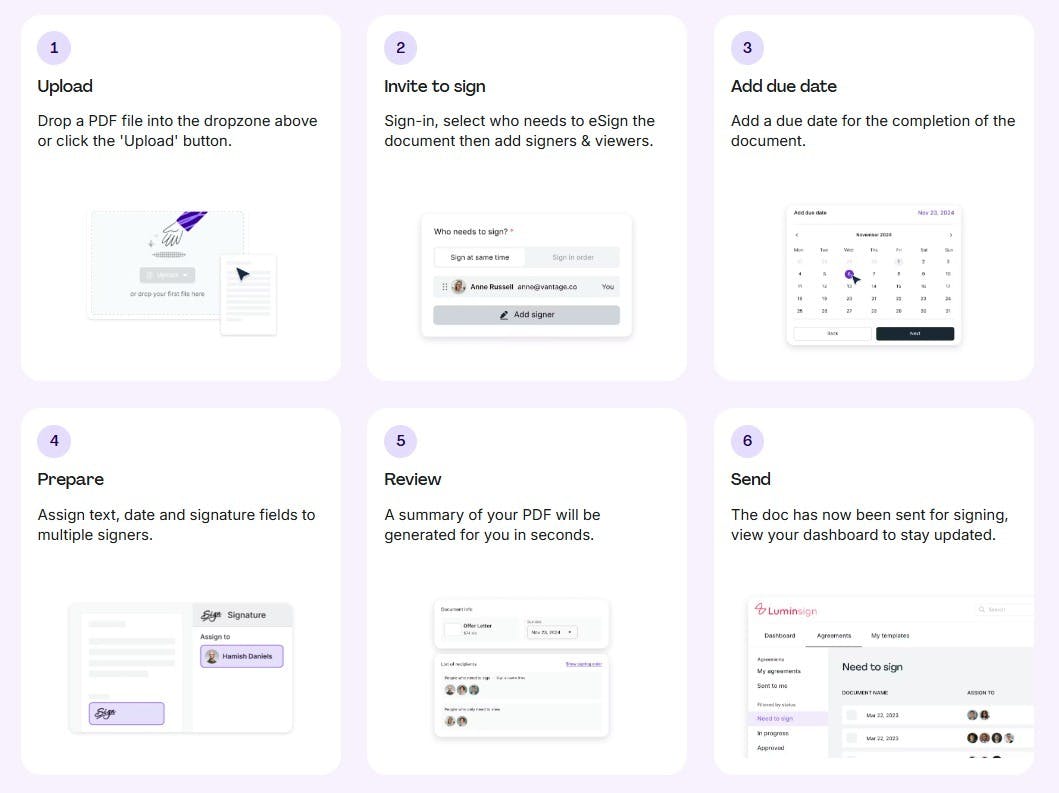
These days, knowing how to add a digital signature to a PDF can save you time, reduce hassle, and keep your paperwork secure. Whether you’re signing contracts, approvals, or legal documents, a digital signature offers a quick and professional way to finalize documents without printing or scanning. Thanks to tools like Lumin and other online editors, signing PDF documents has never been simpler or more accessible.
This article will guide you step-by-step through the easiest methods to add a digital signature to your PDFs, what you need to get started, and how to ensure your signatures are legally valid.
What Is a Digital Signature—and Why It Matters
Before we dive into how to add a
Digital vs. Electronic Signature: What’s the Difference?
The terms digital signature and electronic signature are often used interchangeably, but there’s a difference.
● An electronic signature can be any electronic process that indicates agreement, such as typing your name, clicking “I accept,” or pasting an image of your signature.
● A digital signature is a subset of electronic signatures that uses encryption technology to verify the signer’s identity and the integrity of the signed document.
In essence, all digital signatures are electronic signatures, but not all electronic signatures meet the security standards of digital signatures.
Why Digital Signatures Are More Than Just Typing Your Name
A digital signature guarantees that the document hasn’t been altered since it was signed and confirms who signed it. This provides a higher level of trust and security, which is why many businesses and legal entities require digital signatures rather than simple electronic ones.
Use Cases
Digital signatures are widely used in:
● Business contracts
● Internal approvals
● Legal agreements
● Real estate documents
● Healthcare forms
● Financial transactions
Any document requiring proof of authenticity and intent benefits from a digital signature.
What You Need Before You Start
To add a digital signature to a PDF, you’ll want to have a few essentials ready to make the process smooth.
A Valid PDF Document
First, ensure your document is a valid PDF file. Most documents you receive or prepare for signing will already be in this format.
Access to a Signature Tool (Online or App-Based)
You’ll need access to a reliable signature creator tool. This can be an online platform like Lumin, desktop software such as Adobe Acrobat Reader, or mobile apps designed for PDF signing online.
Your Preferred Device: Desktop, Tablet, or Mobile
Consider which device you’ll use. Many tools work seamlessly across desktops, tablets, and smartphones, allowing you to sign PDF documents anywhere.
The Easiest Way to Add a Digital Signature (Step-by-Step)
Here are three straightforward methods to add your PDF signature efficiently.
Method 1 – Use Adobe Acrobat Reader (Free)
Adobe Acrobat Reader remains one of the most trusted free tools to sign PDF documents.
- Open your PDF in Adobe Acrobat Reader.
- Click on “Fill & Sign” in the right-hand pane.
- Choose “Sign” and then “Add Signature.”
- Create your signature by typing, drawing, or uploading an image.
- Place your signature on the document where needed.
- Save the file — your digitally signed PDF is ready to share.
Method 2 – Use a Browser-Based Tool (No Downloads Needed)
If you prefer not to download software, several browser-based editors make PDF signing online easy:
● Lumin: Upload your PDF, add your signature using the built-in signature creator, then download the signed file.
● Smallpdf: Offers a similar process with a clean interface.
● PDFescape: Another popular tool for quick online signing.
These tools allow you to upload, sign, and download a signed PDF in under a minute, no installation required.
Data privacy and file deletion tips: Always check the platform’s privacy policy. Choose services that delete your files automatically after a set time, and avoid uploading sensitive documents on unsecured networks.
Method 3 – Sign on Mobile (iOS or Android)
Signing PDFs on your phone is handy when you’re away from your desk.
● iOS: Use the built-in Files app or Adobe Fill & Sign to open PDFs, add your electronic signature, and save.
● Android: Apps like Adobe Fill & Sign or Google Drive allow quick signing and saving of PDF documents.
Mobile signing is ideal for signing contracts on the go or approving documents instantly.
Make It Official: How to Ensure Legal Validity
Adding a signature is only part of the process. Ensuring your digital signature holds up legally is crucial.
When You Need a Certificate-Based Signature (Digital ID)
For sensitive or regulated documents, a certificate-based digital signature — issued by a trusted authority — provides verified proof of identity and tamper-evident seals.
Compliance Standards: eIDAS, ESIGN, and UETA
Different regions have specific laws recognizing electronic and digital signatures:
● eIDAS (EU)
● ESIGN Act (USA)
● UETA (USA)
These frameworks set standards for what constitutes a valid signature and help ensure your signed documents are legally binding.
Signing on Behalf of a Company or in Regulated Industries
When signing on behalf of an organization or in industries like finance or healthcare, extra steps may be required to comply with regulatory standards. Always check for industry-specific requirements before signing.
Pro Tips for Smoother Signing Workflows
Here are some smart tips to speed up and simplify your signing tasks.
Save Your Signature for Reuse
Most tools allow you to save your signature for future use. This saves time and avoids recreating it every time you need to sign a PDF document.
Create Templates for Repeated Documents
If you frequently sign similar forms or contracts, create templates with fillable fields and signature spots to speed up the process.
Sync with Cloud Tools
Many editors integrate with cloud storage, letting you access, sign, and save PDFs directly from your preferred platform — keeping your workflow seamless.
Troubleshooting: Common Issues and How to Fix Them
Even with simple tools, you might run into some hurdles. Here’s how to overcome them.
Can’t Add Signature in Adobe? Try This
If Adobe Acrobat Reader won’t let you sign, ensure the PDF isn’t password-protected or restricted. You might need to save a copy or ask the sender for an unrestricted version.
File Too Large or Protected? Workarounds
Large PDFs or files with security settings can block signing. Try compressing the file or using online tools that can unlock PDFs temporarily for signing.
Signature Not Showing on the Final PDF? Check This
Sometimes, signatures don’t appear due to viewing issues. Try opening the PDF in different readers or check that the signature layer isn’t hidden.
Final Thoughts
Adding a digital signature to a PDF doesn’t have to be complicated. Whether you use Adobe Acrobat Reader, an online platform like Lumin, or mobile apps, these methods make it easy to sign PDF documents quickly and securely.
Remember to choose the right tool for your needs, keep legal requirements in mind, and use pro tips to make your signing workflows smoother. With the right approach, adding a PDF signature becomes a quick step in your document process — no printing required.
This story was distributed as a release by Sanya Kapoor under